Purpose
The purpose of this Report Description is to explain how the Employee Headcount Over Time will show employee headcounts over one or more time periods.
Report Description
The B0161 Employee Headcount Over Time Report will show how the employee headcounts will show over one or more time periods. It will also include free characteristics such as demographics and employee pay information.
Report Location
PA: Employee Headcount
Report Uses
- This crosstab report shows employee headcounts over one or more time periods.
- Available Objects include demographics and employee information.
- The report can be used to compare employee counts over different months to measure employment fluctuations and trends.
How to Generate This Report
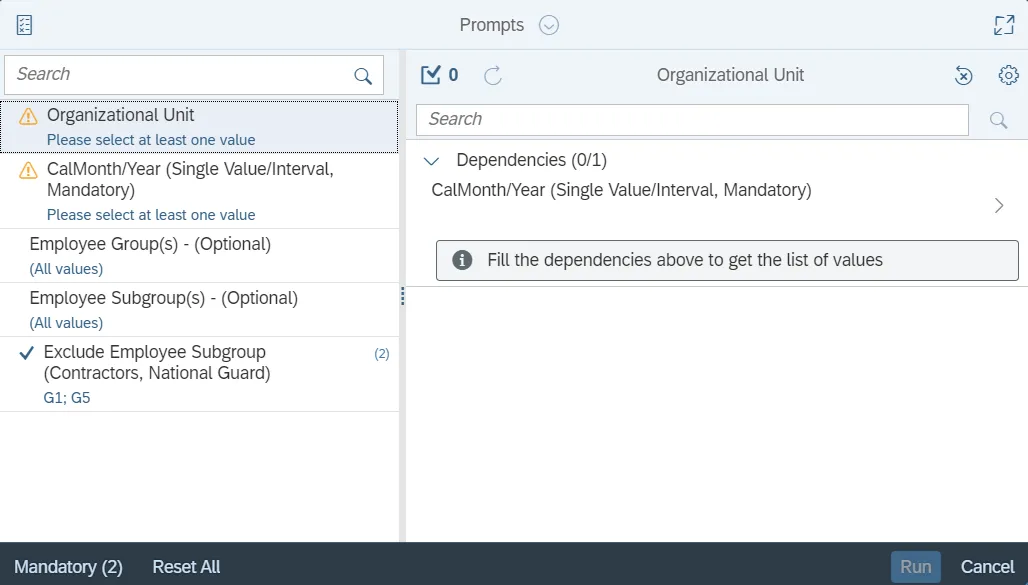
This report is generated after selecting values for the mandatory prompts. All mandatory prompts must have values selected before the Run Icon can be used to generate the report. Mandatory prompts can be identified as mandatory by the exclamation mark inside of the yellow-orange triangle, the square with the checkmark, or the display of (Mandatory). Detailed instructions for interaction with each prompt can be found on the Web Intelligence Prompt List on the OSC website.
The Mandatory prompts for this report are:
- Organizational Unit
- CalMonth/Year (Single Value/Interval, Mandatory)
This report can also be further limited by utilizing the Optional prompts to further limiting the amount of data that retrieved into the body of the report. Optional prompts are indicated as optional in parentheses beside the prompt.
The Optional prompts are:
- Employee Group(s) - (Optional)
- Employee Subgroup(s) - (Optional)
Note: Please select an Employee Subgroup relevant to the Employee Group selected. Otherwise, the report will show no result.
Exclusion prompts exclude specified data by default while allowing customers the flexibility of changing them when necessary. Exclusion prompts are identified by the term Exclude followed by the prompt.
The Exclusion prompts are:
- Exclude Employee Subgroup (Contractors, National Guard)
Initial Layout
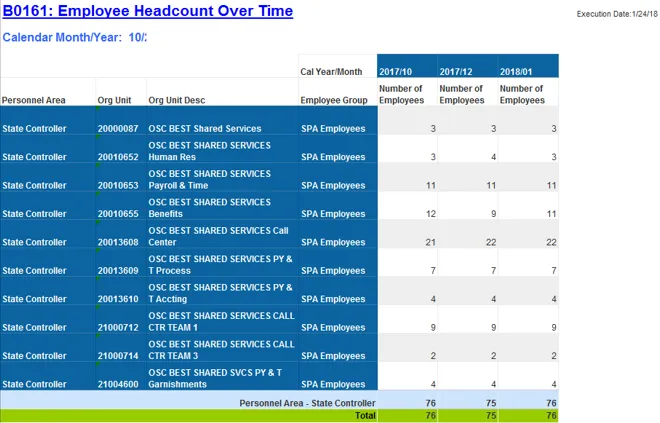
The report is generated with a list of Organizational No. of Employees by Employee Subgroup for each month.
Available Objects
This is a list of the available objects that can be added to the report, from the Document Dictionary once in the Design mode:
Dimensions
- Action Type
- Age Range
- Agency Hire Date
- Cal Mth/Yr
- Challenge Indicator
- Country
- Effective Date
- Emp Pay Area
- Emp Pay Group
- Emp Pay Level
- Emp Pay Type
- Employee
- Employee Group
- Employee Subgroup
- Employee’s Name
- Employment Status
- ESG CAP
- Ethnic Origin
- Fiscal period
- Fiscal year
- Fiscal Year Variant
- Fiscal year/period
- Gender
- Job
- Job Branch
- Job Family
- Length of Service
- Military Status
- Organizational Unit
- Original Hire Date
- Personnel Area
- Personnel Subarea
- Pos Addr Street
- Pos City
- Pos Country
- Pos County
- Position
- Retired Veteran
- Salary Range
- Separated Veteran
- SOC Code
- Spouse of Disabled Veteran
- Spouse of Surviving Dependent of Deceased Veteran
- State
- Supv Employee
- Supv position
- Vet: Armed Forces
- Vet: Disabled Veteran
- Vet: Discharge date
- Vet: Non-Veteran
- Vet: Not Protected
- Vet: Other Protected
- Vet: Protected
- Vet: Recently Separated
- Vet: Special Disabled
- Vet: Vietnam Era
- Veteran Status
Measures
- EPA Employees
- Judicial Employees
- Number of Armed Forces Veterans
- Number of Employees
- Number of Employees with Military Status
- Number of Non-Veteran Employees
- Number of Other Protected Veterans
- Number of Protected Veterans
- Number of Recently Separated Veterans
- Number of Retired Veterans
- Number of Separated Veterans
- Number of Special Disabled Veterans
- Number of Veteran Employees
- Number of Vietnam ERA Veterans
- SPA Employees
- Spouse of Disabled Veterans Headcount
- Spouse of Surviving Dependent of Deceased Veteran Headcount
- Supplemental Employees
Variables
- Prompt Response Cal Mth/Yr
- Prompt Response Employee Group
- Prompt Response Employee Subgroup
- Prompt Response Exclude Employee Group
- Prompt Response Exclude Employee Subgroup
- Prompt Response Organizational Unit
- Armed Forces Service Medal Veteran
- Cal Year/Month
- Disabled Veteran
- Military Status
- Non-Veteran
- Not a Protected Veteran
- Other Protected Veteran
- Protected Veteran
- Recently Separated Veteran
- Special Disabled veteran
- Veteran Status
- Vietnam ERA Veteran

Special Report Considerations/Features
- This report is in Cross Tab format with Personnel Area, Org Unit and Employee Group in Rows and Cal Year/Month in columns.
- Report has a break and subtotal on Personnel Area.
- Employee Subgroup G1 – Contractors and G5 – National Guards are excluded from the report. Reference the Exclusion Prompt “Exclude Employee SubGroup (Contractors, National Guard) G1; G5” for details.
- Employment Status - Active. Report runs for Active Employees only.