Purpose
The purpose of this report description is to explain how to generate the Employees below job minimum and above job maximum report.
Report Description
This report provides a list of employees below Job Minimum and a list of employees above Job Maximum and contains two reporting views.
- The first report tab represents employees whose FTE Annual Salary is below the Job Minimum Pay.
- The second report tab represents employees whose FTE Annual Salary is above the Job Maximum Pay.
Report Location
PA: Compensation
Report Uses
Agencies should run this report to monitor for employees not being paid at Job Minimum or are outside the Job Maximum.
How to Generate This Report
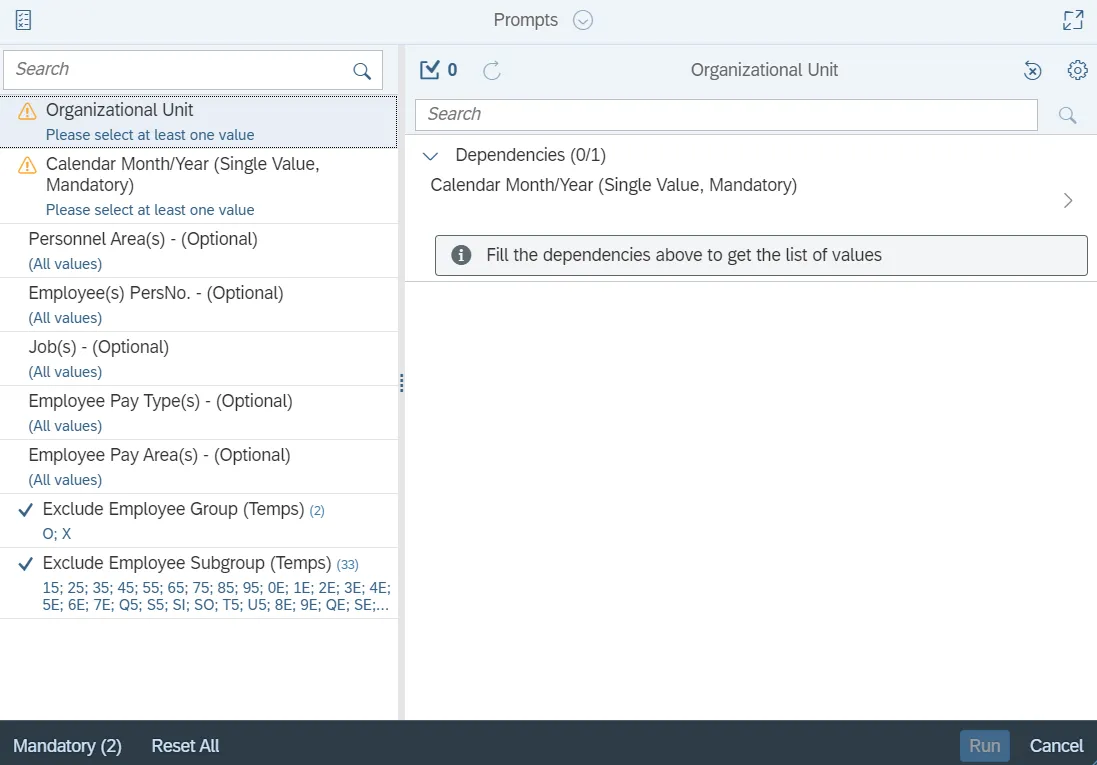
This report is generated after selecting values for the mandatory prompts. All mandatory prompts must have values selected before the Run Icon can be used to generate the report. Mandatory prompts can be identified as mandatory by the exclamation mark inside of the yellow-orange triangle, the square with the checkmark, or the display of (Mandatory). Detailed instructions for interaction with each prompt can be found on the Web Intelligence Prompt List on the OSC website.
The Mandatory prompts for this report are:
- Organizational Unit
- Calendar Month/Year (Single Value, Mandatory)
This report can also be further limited by utilizing the Optional prompts to further limiting the amount of data that retrieved into the body of the report. Optional prompts are indicated as optional in parentheses beside the prompt.
The Optional prompts are:
- Personnel Area(s) - (Optional)
- Employee(s) PersNo. - (Optional)
- Job(s) - (Optional)
- Employee Pay Type(s) - (Optional)
- Employee Pay Area(s) - (Optional)
Note: Since we have a large number of employees in the system, using broad wildcard searches can be very slow and may result in an error if the search exceeds the system limit. If you do not know the employee number and must do a name search, you can narrow down your search by using the wildcard with specific text strings when looking for an employee by name such as:
Mickey*Mouse*
*Mouse
If you know the employee number, it is best to use the manual entry field in Employee(s) PersNo. - (Optional) to enter your selection.
Exclusion prompts exclude specified data by default while allowing customers the flexibility of changing them when necessary. Exclusion prompts are identified by the term Exclude followed by the prompt.
The Exclusion prompts are:
- Exclude Employee Group (Temps)
- Exclude Employee Subgroup (Temps)
Note: The Employee Group and the Employee Subgroup exclusions work together as a set to exclude temporary employees. If you want to clear the Temp exclusion, both exclusions (EE Group and EE Subgroup) must be cleared.
Initial Layout
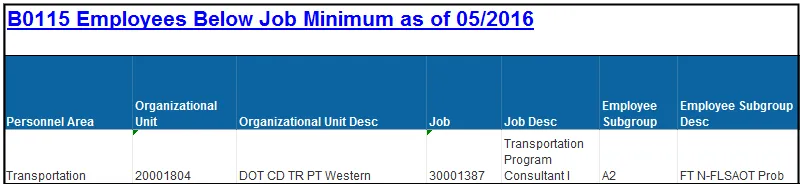
There are 2 report tabs available. Below are sample renderings from each tab.
- Employees below Job Minimum: This Report displays the list of Employees below Job Minimum.
- Continued…
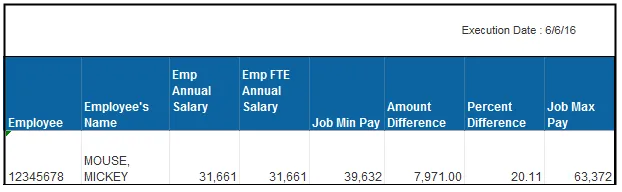
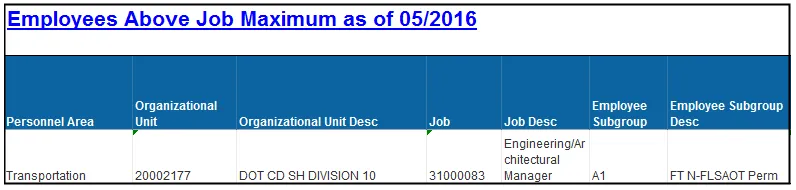
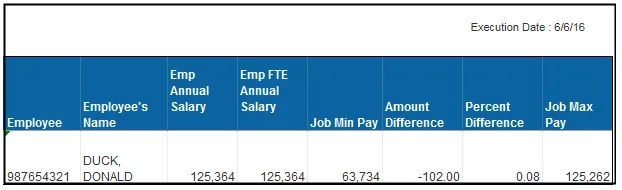
- Employees Above Job Maximum: This Report displays the list of Employees above Job Maximum.
- Continued…
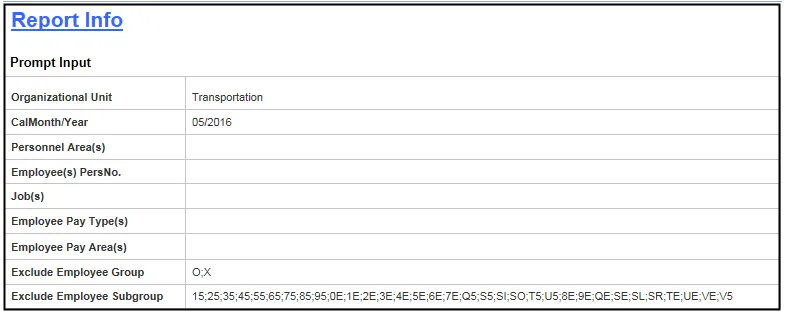
- The Report Info tab displays information about the prompts entered.
Available Objects
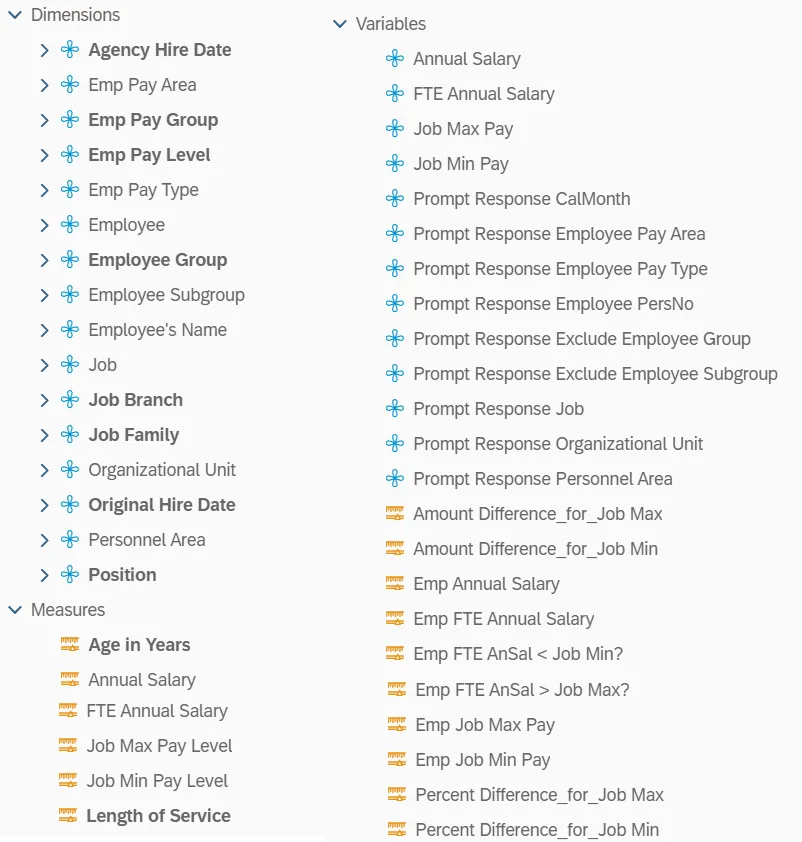
This is a list of the available objects that can be added to the report, from the Document Dictionary once in the Design mode:
Dimensions
- Agency Hire Date
- Emp Pay Area
- Emp Pay Group
- Emp Pay Level
- Emp Pay type
- Employee
- Employee Group
- Employee Subgroup
- Employee’s Name
- Job
- Job Branch
- Job Family
- Organizational Unit
- Original Hire Date
- Personnel Area
- Position
Measures
- Age in Years
- Annual Salary
- FTE Annual Salary
- Job Max Pay Level
- Job Min Pay Level
- Length of Service
Variables
- Annual Salary
- FTE Annual Salary
- Job Max Pay
- Job Min Pay
- Prompt Response CalMonth
- Prompt Response Employee Pay Area
- Prompt Response Employee Pay Type
- Prompt Response Employee PersNo
- Prompt Response Exclude Employee Group
- Prompt Response Exclude Employee Subgroup
- Prompt Response Job
- Prompt Response Organizational Unit
- Prompt Response Personnel Area
- Amount Diffference_for_Job Max
- Amount Diffference_for_Job Min
- Emp Annual Salary
- Emp FTE Annual Salary
- Emp FTE AnSal < Job Min?
- Emp FTE AnSal < Job Max?
- Emp Job Max Pay
- Emp Job Min Pay
- Percent Diffference_for_Job Max
- Percent Diffference_for_Job Min
Special Report Considerations/Features
- Temporary employees are excluded by default but this can be changed.
- Report only pulls active employees
- The base report provides the values for job min pay and job max pay as of the end of the month when the monthly snapshot data is captured. Retroactive changes to the job planned compensation settings effective for prior months will not be reflected for the job min pay and job max pay on the base report.
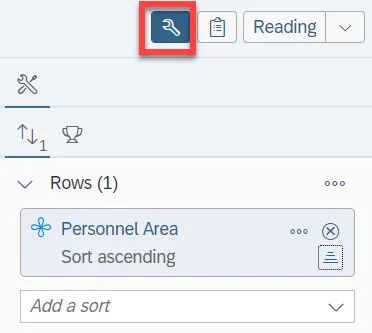
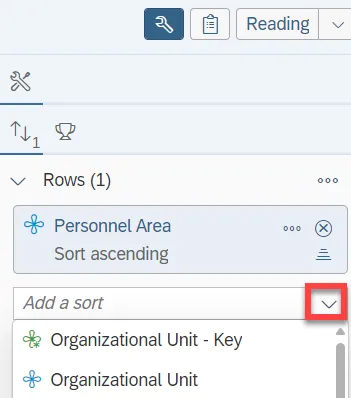
- By default, data is sorted by Personnel Area. This can be changed as needed.
- To change the sorting to another column, please follow the steps below. There are 2 steps to complete this process.
Step 1: Click on tool icon.
Step 2: Click on the “Drop down icon”.
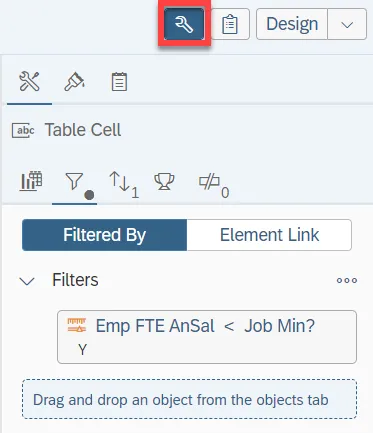
- By default, the first report tab is filtered to show the list of Employees whose FTE Annual Salary is less than Job Minimum (This is mandatory Criteria for this report).
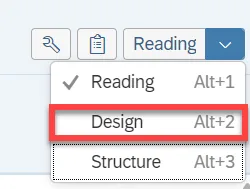
- To change the report filter criteria or see how it is defined on the report block, please follow the steps below. There are 2 steps to complete this process.
Step 1: Change to “Design” mode.
Step 2: Click on the tool icon.
- By default, the second report tab is filtered to show the list of Employees whose FTE Annual salary is greater than Job Maximum (This is mandatory Criteria for this report) excluding Flat Rates for EE Pay Type and EE Pay Area.
- To change the report filter criteria or see how it is defined on the report block, please follow the steps below. There are 2 steps to complete this process.
Step 1: Change to “Design” mode.

Step 2: Click on the tool icon.
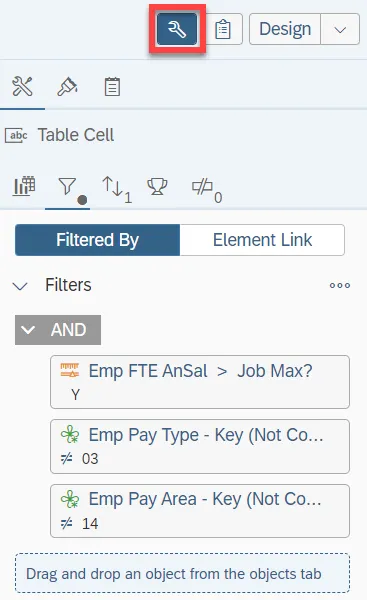
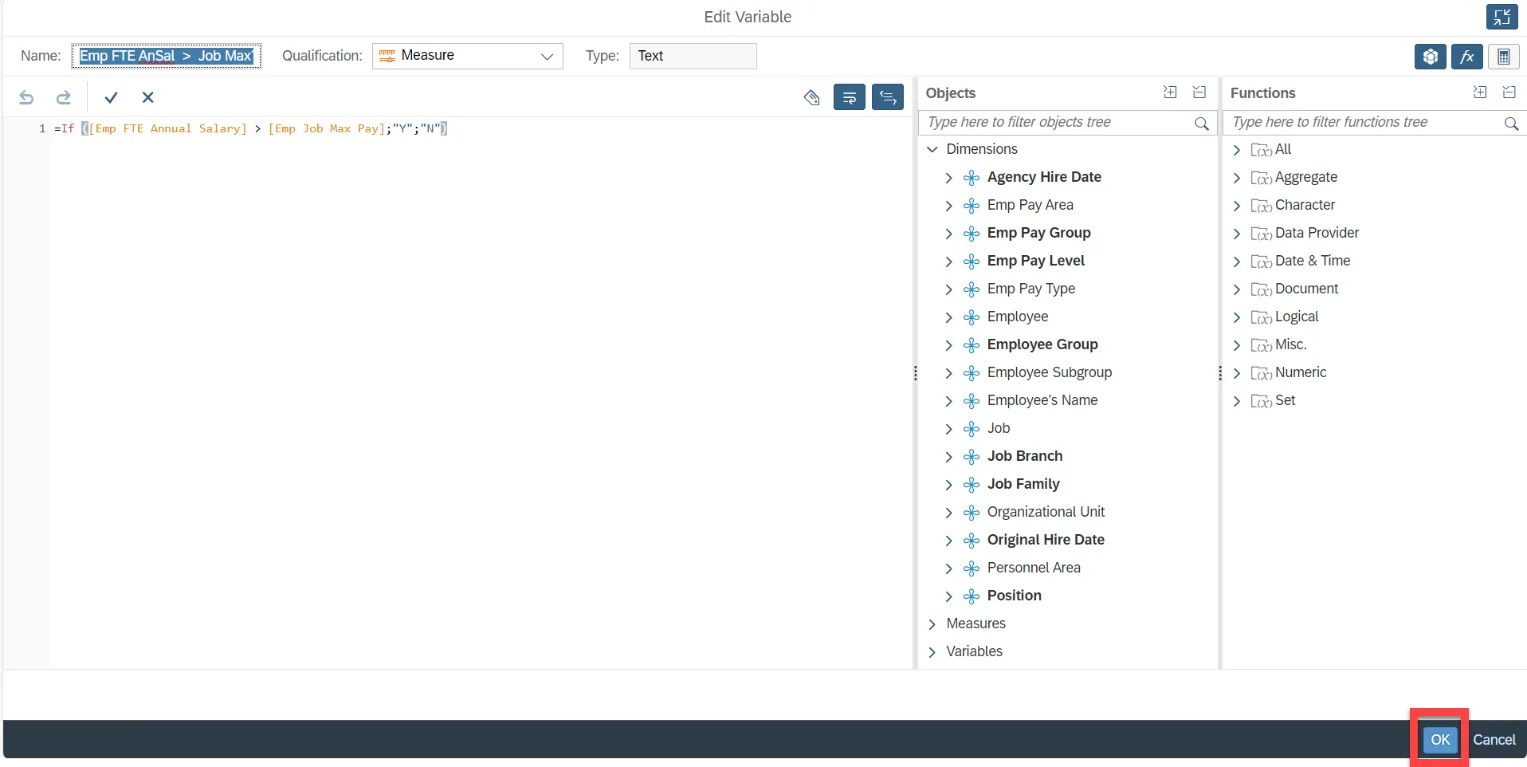
- To achieve the above report filter criteria, 2 report variables were created.
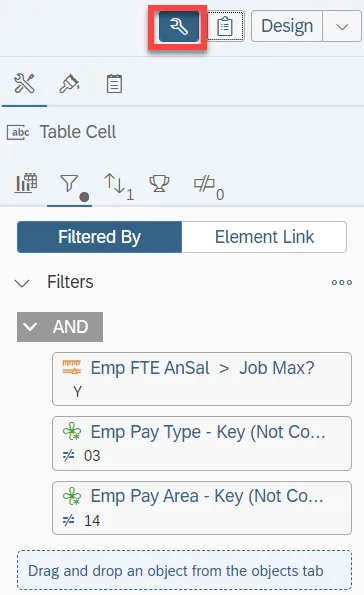
- To view the definition for these report variables, follow the steps below. There are 6 steps to complete this process.
Step 1: Change to “Design” mode.

Step 2: Click on the tool icon.
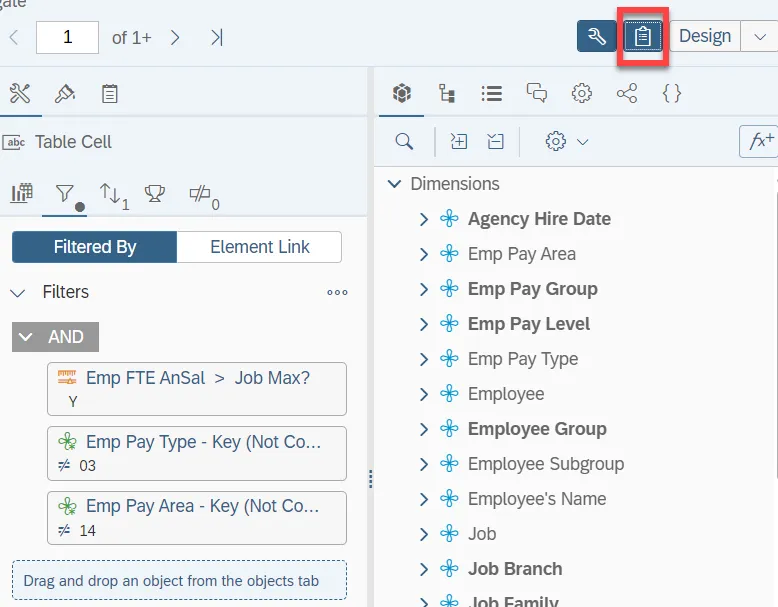
Step 3: Click on the clipboard icon.
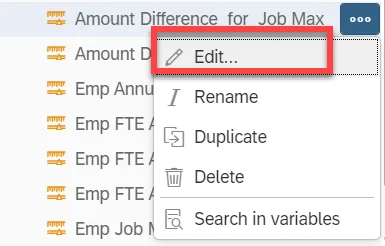
Step 4: Select the three dots by the variable to change: ‘Emp FTE AnSal < Job Min?’ or ‘Emp FTE AnSal > Job Max?’.
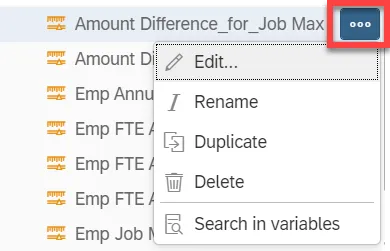
Step 5: Select “Edit”.
Step 6: Select “OK”.