Purpose
The purpose of this Report Description is to explain how to generate the report that lists only positions that were filled within the selected date range, and it calculates how many days it took to fill them.
Report Description
This report lists only positions that were filled within the selected date range, and it calculates how many days it took to fill them. It provides the number of days vacant and the number of workdays vacant for each position that was filled within the selected date range.
Report Location
OM: Vacant-Filled Position Analysis
Report Uses
Agencies will use this report to determine how long it took to fill a position from the time it became vacant until the time it became filled.
This report can be used to identify positions that are hard to fill by analyzing the Number of Days Vacant on the report. If the Number of Days Vacant was longer than expected, agencies can determine if other factors can be improved upon to decrease the time it takes to fill a position, such as recruiting, budgeting, or hiring processes.
Data Load Frequency
The data for this report is loaded every weekday morning, excluding holidays. This report will include any changes that were made to the data on the previous day, including retroactive changes.
How to Generate This Report
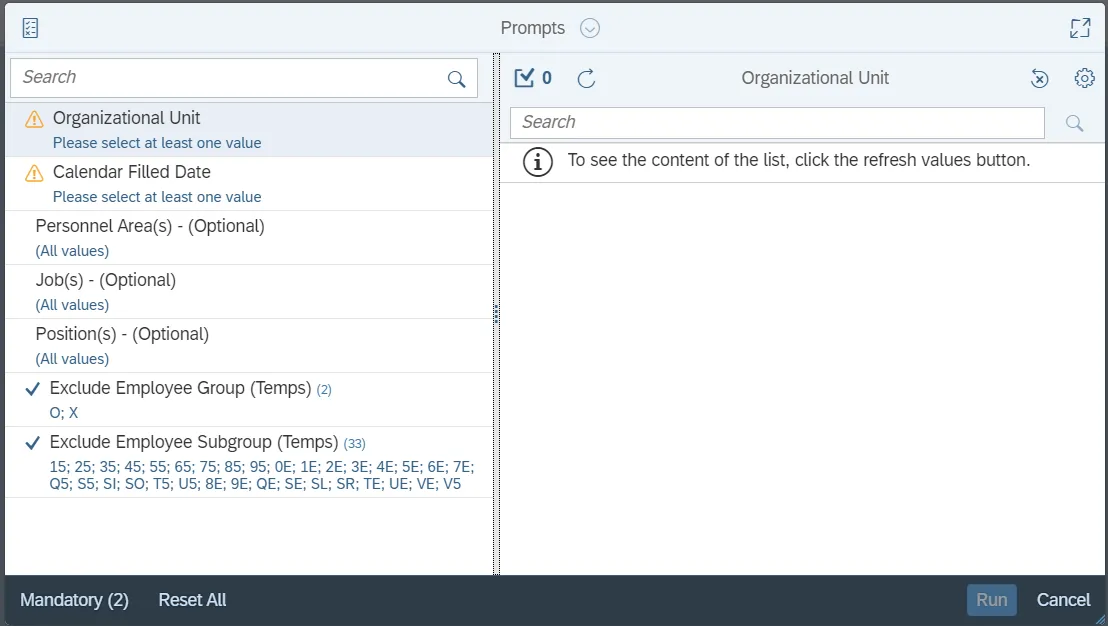
This report is generated after selecting values for the mandatory prompts. All mandatory prompts must have values selected before the Run Icon can be used to generate the report. Mandatory prompts can be identified as mandatory by the exclamation mark inside of the yellow-orange triangle, the square with the checkmark, or the display of (Mandatory). Detailed instructions for interaction with each prompt can be found on the Web Intelligence Prompt List on the OSC website.
The Mandatory prompts for this report are:
- Organizational Unit
- Calendar Filled Date
This report can also be further limited by utilizing the Optional prompts to further limiting the amount of data that retrieved into the body of the report. Optional prompts are indicated as optional in parentheses beside the prompt.
The Optional prompts are:
- Personnel Area(s) - (Optional)
- Job(s) - (Optional)
- Position(s) - (Optional)
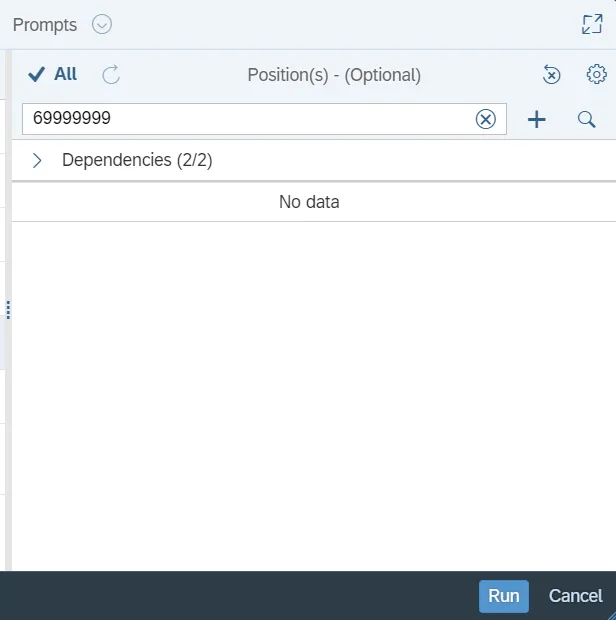
Note: Since the system has a large number of positions, using broad wildcard searches can be very slow and may result in an error if the search exceeds the system limit. If the position is not known and a name search must be done, narrow down the search by using the wildcard with specific text strings when looking for a position by name such as:
- Building*
- *Assistant*
- Admin*
If the position number is known, it is best to use the manual entry field in Position(s) to enter your selection.
Exclusion prompts exclude specified data by default while allowing customers the flexibility of changing them when necessary. Exclusion prompts are identified by the term Exclude followed by the prompt.
The Exclusion prompts are:
- Exclude Employee Group (Temps)
- Exclude Employee Subgroup (Temps)
Note: The Employee Group and the Employee Subgroup exclusions work together as a set to exclude temporary employees. If you want to clear the Temp exclusion, both exclusions (EE Group and EE Subgroup) must be cleared.
Initial Layout
The report lists all actions based on the prompt selections. Below is a sample of the initial layout rendered.

Available Objects
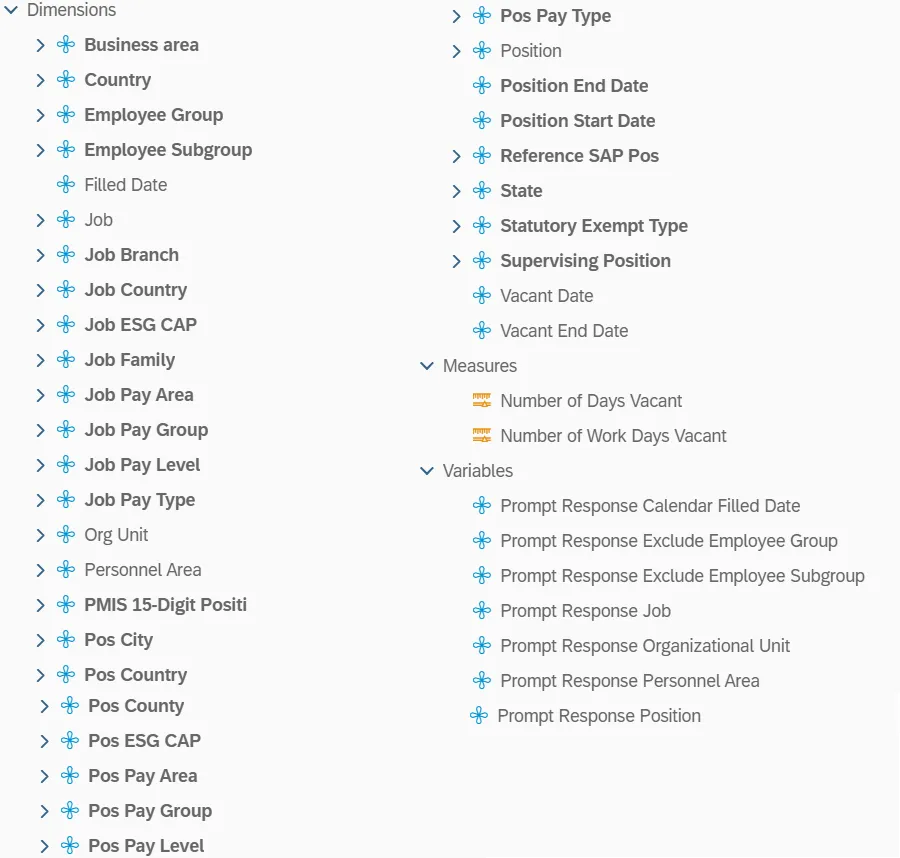
This is a list of the available objects that can be added to the report, from the Document Dictionary once in the Design mode:
Dimensions
- Business Area
- Country
- Employee Group
- Employee Subgroup
- Filled Date
- Job
- Job Branch
- Job Country
- Job ESG CAP
- Job Family
- Job Pay Area
- Job Pay Group
- Job Pay Level
- Job Pay Type
- Org Unit
- Personnel Area
- PMIS 15-Digit Positi
- Pos City
- Pos Country
- Pos County
- Pos ESG CAP
- Pos Pay Area
- Pos Pay Group
- Pos Pay Level
- Pos Pay Type
- Position
- Position End Date
- Position Start Date
- Reference SAP Pos
- State
- Statutory Exempt Type
- Supervising Position
- Vacant Date
- Vacant End Date
Measures
- Number of Days Vacant
- Number of Work Days Vacant
Variables
- Prompt Response Calendar Filled Date
- Prompt Response Exclude Employee Group
- Prompt Response Exclude Employee Subgroup
- Prompt Response Job
- Prompt Response Organizational Unit
- Prompt Response Personnel Area
- Prompt Response Position
Special Report Considerations/Features
- The position’s Filled Date on the report reflects the date the employee was brought into the position with a personnel action (i.e., new-hire, promotion, etc.). A holder is an employee who is assigned to, or “holds” a position. The “valid from” date of the position’s infotype 1001 Holder Relationship record is updated with the first date an employee occupies the position. The Filled Date on this report comes from the “valid from” date from the holder relationship record from infotype 1001.
- This report includes only positions with a Filled Date that falls within the calendar filled date range selected.
- Here is an example of a position that is vacated on 3/14/2008, and then filled on 6/16/2008:

- If the report is generated with the calendar filled dates of 06/01/2008 – 06/30/2008 for position 69999999, then the position would be included on the report, since the Filled Date of 06/16/2008 is within the date range selected (some columns were removed from the report for this example):

- If the report is generated with the calendar filled dates of 05/01/2008 – 05/31/2008 for the same position, 69999999, then the position would not be included on the report since the Filled Date of 06/16/2008 is not within the date range selected:
- If a position is occupied by one or more employees for the entire period of the date range selected, then it will not be included in the report.
- The “Vacant Date” is determined by one of the following:
- Position was previously occupied: If a position was previously occupied by an employee and then vacated, and the position was later filled within the date range selected, the “Vacant Date” is one day after the previous employee’s last day in the position.
- Position was never occupied: If the position was never occupied prior to it being filled, and the position was filled within the date range selected, the “Vacant Date” on the report is the position’s start date.
- The “Number of Days Vacant” is calculated by subtracting the “Filled Date” from the “Vacant Date.”
- The “Number of Work Days Vacant” is calculated by subtracting the “Filled Date” from the “Vacant Date” using the “US” factory calendar’s settings which includes only work days (excludes North Carolina state holidays and weekends).
- Positions in the range 62000000 - 64999999 (Temporary Solutions Work Orders) are excluded.
- Contractor and temporary employee groups and subgroups are excluded by default, but this can be changed.
- Address Suppl is available from Position attributes (expanded list) in Available Objects.
- Field/Home Based indicator is available from Position attributes (expanded list) in Available Objects.