Purpose
The purpose of this report description is to explain the usage and how to generate the Employee Action Duration Report.
Report Description
This report captures action pairs that are expected to have a finite duration. The report will calculate and display the true duration of paired actions to determine how long an employee has been in an action state such as Leave of Absence (LOA) or Acting Promotion.
Report Location
OSHR Executive Oversight
Report Uses
- This report will be used to monitor LOAs and Salary Actions that should have a finite duration. The monitoring is accomplished by reviewing the duration of each action event and can show cases where a start action does not have a corresponding end action.
- It can also show where actions might have been introduced improperly between the start action and the end action. This scenario is identified by the ‘Status Flag’ data element having a value of ‘R’ (Review).
- There is a link (defined on employee personnel number) to the ‘BP002: Employee History’ report so that the employee’s entire action history can be reviewed as well as a link (defined on the ‘Comments?’ data element) to the ‘B0022: Comments’ report to view comments specific to an action.
How to Generate This Report
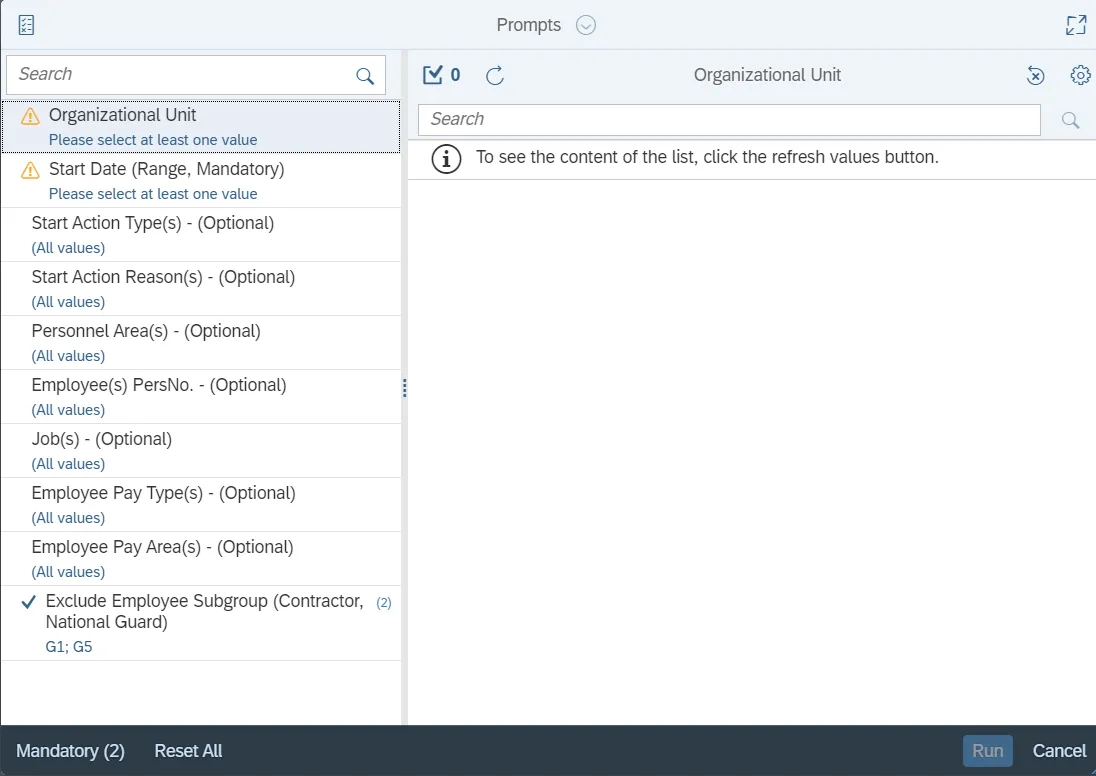
This report is generated after selecting values for the mandatory prompts. All mandatory prompts must have values selected before the Run Icon can be used to generate the report. Mandatory prompts can be identified as mandatory by the exclamation mark inside of the yellow-orange triangle, the square with the checkmark, or the display of (Mandatory). Detailed instructions for interaction with each prompt can be found on the Web Intelligence Prompt List on the OSC website.
The Mandatory prompts for this report are:
- Organizational Unit
- Start Date (Range, Mandatory)
This report can also be further limited by utilizing the Optional prompts to further limiting the amount of data that retrieved into the body of the report. Optional prompts are indicated as optional in parentheses beside the prompt.
The Optional prompts are:
- Start Action Type(s) - (Optional)
- Start Action Reason(s) - (Optional)
- Personnel Area(s) - (Optional)
- Employee(s) PersNo. - (Optional)
- Job(s) - (Optional)
- Employee Pay Type(s) - (Optional)
- Employee Pay Area(s) - (Optional)
Note: Since the system contains a large number of employees, using broad wildcard searches can be very slow and may result in an error if the search exceeds the system limit. If the employee number is not known and a name search must be done, narrow down your search by using the wildcard with specific text strings when looking for an employee by name such as:
- Mickey*Mouse*
- *Mouse
If the employee number is known, it is best to use the manual entry field in Employee(s) PersNo. - (Optional) to enter the selection.
Exclusion prompts exclude specified data by default while allowing customers the flexibility of changing them when necessary. Exclusion prompts are identified by the term Exclude followed by the prompt.
The Exclusion prompts are:
- Exclude Employee Subgroup (Contractor, National Guard)
Initial Layout
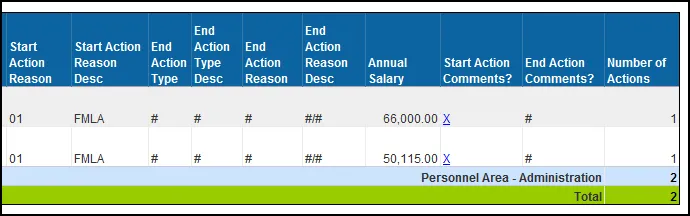
Below is a sample which shows all the columns available in the default report rendering.
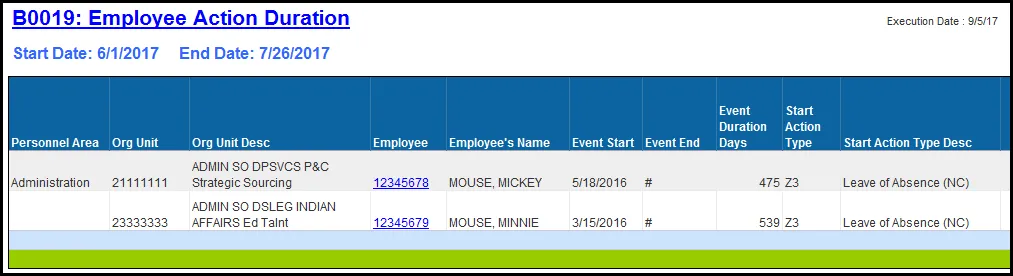
Report detail line continued:
Available Objects
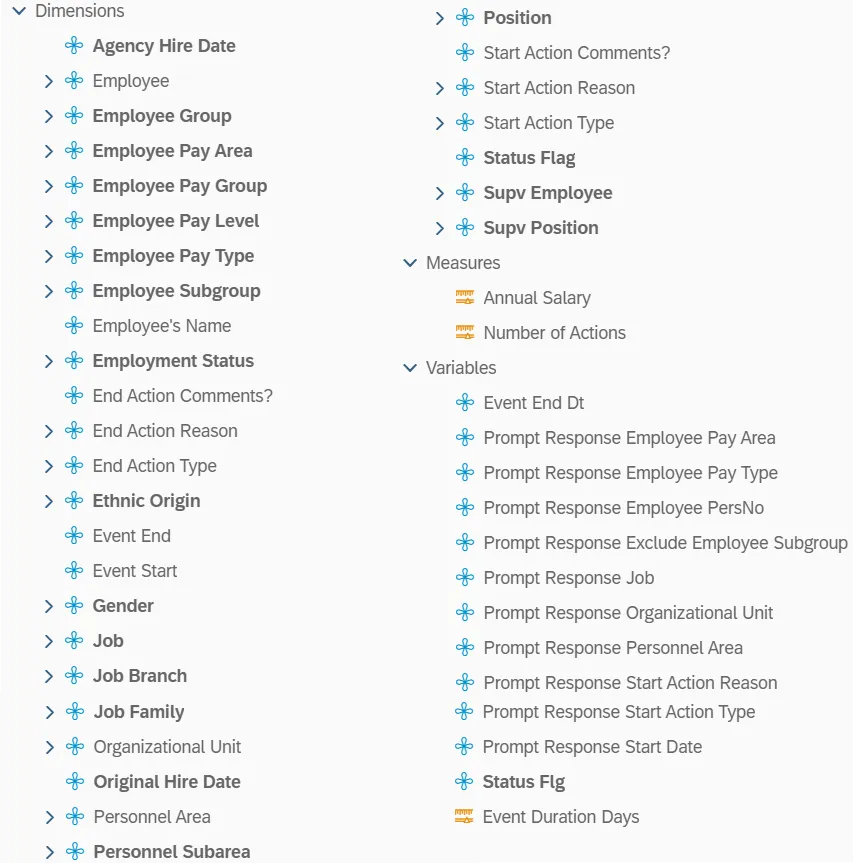
This is a list of the available objects that can be added to the report, from the Document Dictionary once in the Design mode:
Dimensions
- Agency Hire Date
- Employee
- Employee Group
- Employee Pay Area
- Employee Pay Group
- Employee Pay Level
- Employee Pay Type
- Employee Subgroup
- Employee’s Name
- Employment Status
- End Action Comments?
- End Action Reason
- End Action Type
- Ethnic Origin
- Event End
- Event StartGender
- Job
- Job BranchJob Family
- Organizational Unit
- Original Hire Date
- Personnel Area
- Personnel Subarea
- Position
- Start Action Comments?
- Start Action Reason
- Start Action Type
- Status Flag
- Supv Employee
- Supv Position
Measures
- Annual Salary
- Number of Actions
Variables
- Event End Dt
- Prompt Response Employee Pay Area
- Prompt Response Employee Pay Type
- Prompt Response Employee PersNo
- Prompt Response Exclude Employee Subgroup
- Prompt Response Job
- Prompt Response Organizational Unit
- Prompt Response Personnel Area
- Prompt Response Start Action Reason
- Prompt Response Start Action Type
- Prompt Response Start Date
- Status Flag
- Event Duration Days
Special Report Considerations/Features
- Contractors and the National Guard are excluded by default, but this can be changed from the prompt screen.
- The types of actions selected for this report are based on valid action pairs defined by the Functional Team and the entries are stored in table ‘ZPA_VALID_PAIRS’. The table identifies seven specific (LOA and salary affecting) actions that when used, should always have a corresponding ‘ending’ action at some point.
| Action Type | Action Description |
|---|---|
| Z1 | Promotion (NC) |
| Z2 | Leave of Absence (NC) |
| Z5 | Investigatory W/Pay (NC) |
| Z6 | Suspension (NC) |
| ZC | Salary Adjustment (NC) |
| ZF | Separation Pay Continuation (NC) |
| ZH | Career Progression (NC) |
- The table contains 400+ combinations of these seven actions paired with the different types of ‘ending’ actions that are normally expected. The complete table can be viewed in the spreadsheet ‘B0019 Action Pairs’ located under sub-folder ‘_Help/Reference Documents’ of the primary ‘BEACON HR/Payroll’ public folder.
- Records that have an ‘R’ Status Flag indicate that there were other actions introduced between the start and end actions and may need to be reviewed.
- Two other reports can be accessed via hyperlinks within the data cells.
Note: Blue text in data fields indicates available links.-
Click the Employee number link to launch the ‘BP002: Employee History’ report.
Image
o Click the ‘X’ link under Action Comments to launch the ‘B0022: Comments’ report.
Image
-