Purpose
The purpose of this Business Process Procedure is to explain how to view the deductions from the quota entitlement when viewing an employee’s quota balances using transaction PT50.
Trigger
You would like to view the deductions from the quota entitlement when viewing an employee’s quota balances using transaction PT50.
Business Process Procedure Overview
Transaction PT50 – Quota Overview provides the overview of quota types for an employee. The overview includes the Entitlements, Remaining Balances, Requested, and Compensation for each quota type. Requested will display the deductions from the quota entitlements.
Access Transaction
Via Transaction Code PT50
Procedure
There are 7 steps in this process.
To display the absences deducted from a specific quota, use transaction PT50.
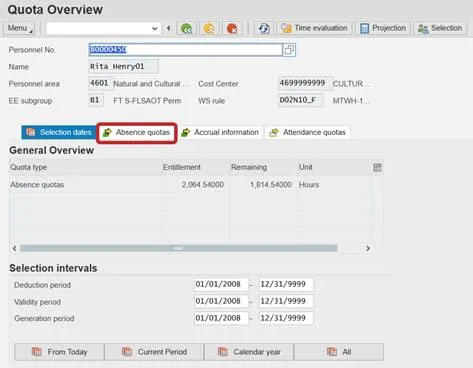
Step 1. Click the Absence quotas tab.
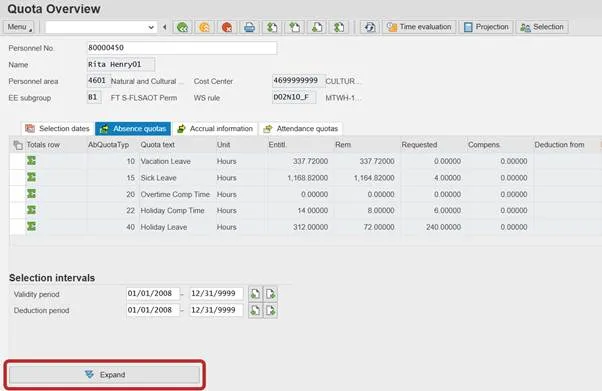
Step 2. Click the Expand button.
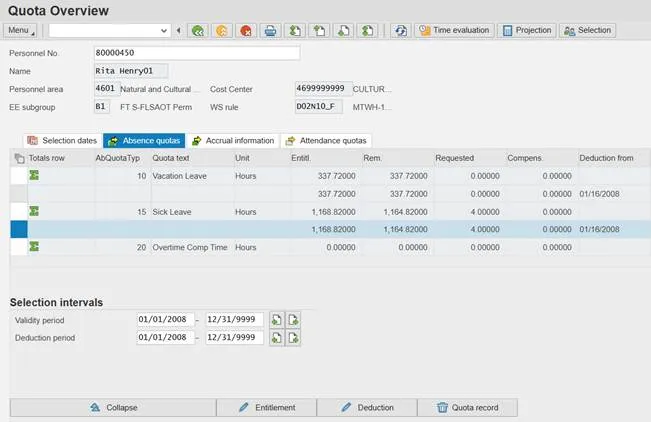
Step 3. Highlight any non-summary line which has hours in the Requested column by clicking the field to the left of the line. Sick Leave is selected in the screenshot below.
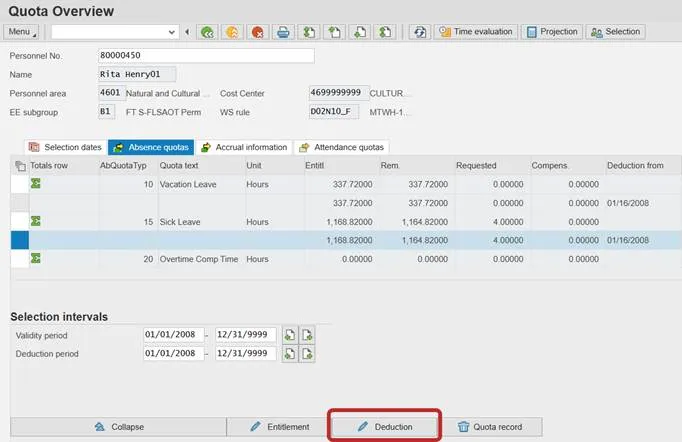
Step 4. Click the Deduction button to display quota deductions.
Step 5. Review the quota deduction details as appropriate. The hours for each day are displayed.
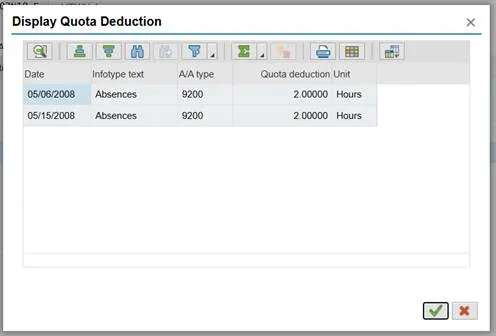
Step 6. Click Continue button (green check) to close the Display Quota Deduction screen.
Step 7. Review other quota deductions as necessary.