Purpose
The purpose of this job aid is to explain how to access and read the time statement.
Accessible via:
- Transaction code – ZNCTIME
- Hyperlink in ESS
Overview
The Time Statement provides a summary view of Time Evaluation results for an employee for a specified calendar month.
Note: This period of time does not align exactly with Overtime Periods.
Note: While this period of time may line up with the monthly Payroll Period, it should not be compared to Payroll results for the same month. Time Evaluation results for a particular month can change if new data is entered or the source data is changed, and Time Evaluation is run again. The Time Statement will reflect the updated results. The Pay Statement will not update once that payroll has been run.
The Time Statement gets its data from Time Evaluation results. If Time Evaluation has not run for an employee for a particular month, the Time Statement will still generate using transaction ZNCTIME, but there will be no data to display on the form. In ESS, an employee will receive a message indicating “Time Statements not available.”
If the time data for a month is incomplete or Time Evaluation has not been run for all of the month, some data will show, but it will not be complete. The data shown on the Time Statement will update after time data changes have been processed by Time Evaluation.
Any retroactive processing of Time Evaluation could change the Time Evaluation results and, therefore, cause changes to the data shown on the Time Statement. It is best to run the Time Statement again whenever you want to analyze the data that it provides. This will ensure that you have the most recent results available.
Time Statement Section
| Personal/Organizational Date | Lists Personal and Organizational Data about the employee. |
| Leave Quotas | Lists summary details for the quotas holding available hours. |
| Calculated Time Results | Lists pertinent calculated totals such as Regular Hours Worked, OT Comp Hours Earned, etc. |
| Supplemental and Premium Time | Lists totals for any supplemental and premium pay time. |
Note: If a related section has no leave activity, then the section will not appear on the time statement. For example, if no special leave hours are found, then no special leave row will be displayed.
Time Evaluation data will remain in the system and be viewable through the Time Statement transaction for at least three years. The Integrated HR-Payroll System eventually will begin archiving this data to move it out of the production system. Details will be provided at that time on how to view this data from the archive location.
Initial Screen -ZNCTIME Transaction
There are 8 steps to complete this process.
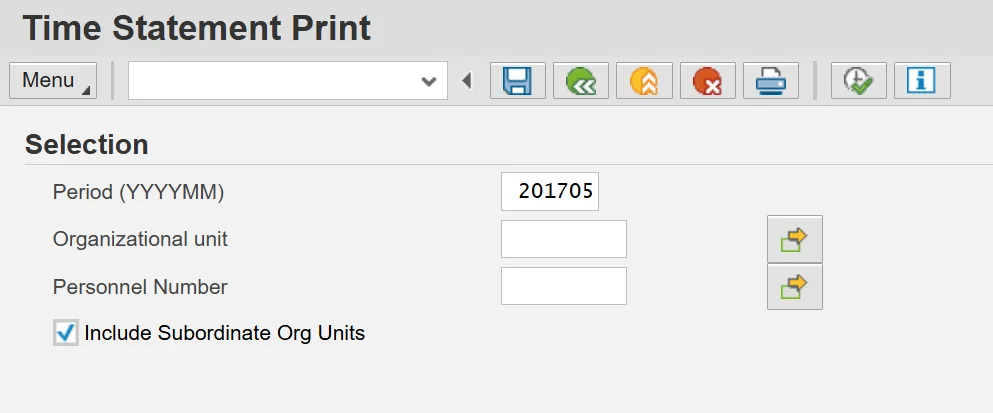
Step 1. Enter a Period in the format (YYYYMM). Only one period can be specified at a time.
Note: The Time Statement will not run for periods prior to 202505 (May 2025).
Step 2. Enter an Organizational Unit value to generate Time Statements for all employees in an Organizational Unit. Multiple values can be entered through the Multiple Selection button.
Step 3. Enter a Personnel Number value to generate a Time Statement for one employee. Multiple values can be entered through the Multiple Selection button.
Step 4. Check the box to “Include Subordinate Org Units.” This only works if you have specified an Organizational Unit.
Step 5. Click on the Execute button.
Information: A delay of several seconds to a minute may occur while executing. The system will display “Checking Authorization” in the message bar at the bottom of the screen during this time.
Step 6. View the pop-up window.
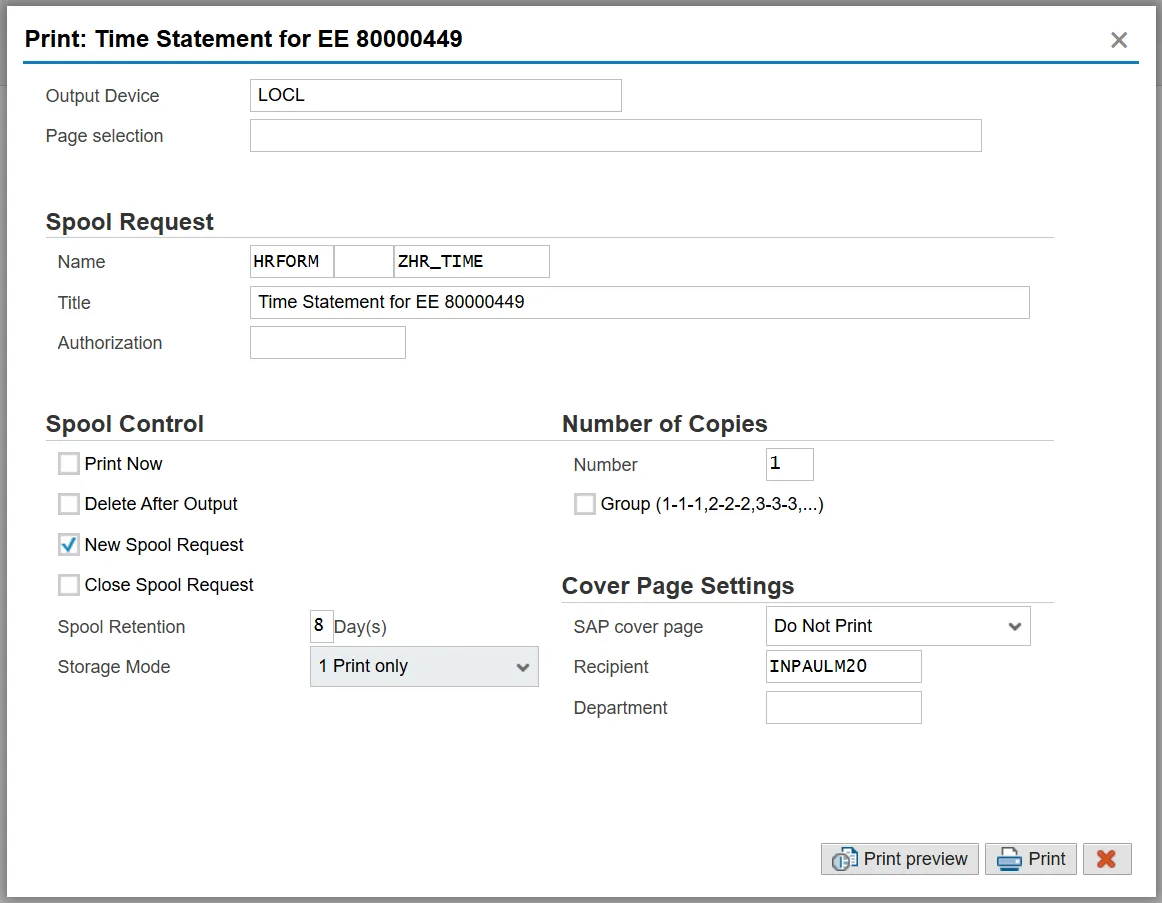
Step 7. Click on the “Print preview” button to view the Time Statement as a PDF file on-screen.
Step 8. Click on the “Print” button to print the Time Statement on paper.
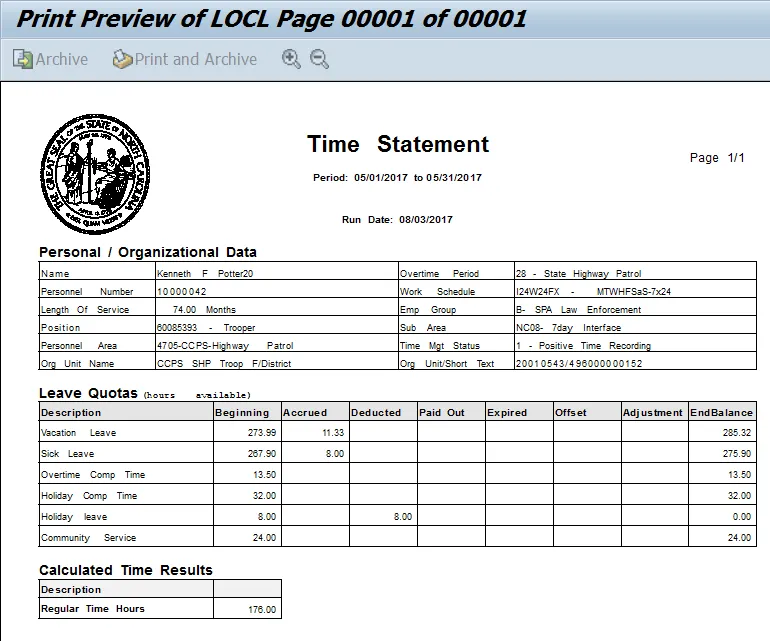
Viewing the Time Statement
Period
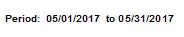
These dates represent the calendar month for which the results are being displayed.
Note: This period of time does not align exactly with Overtime Periods.
Note: While this period of time may line up with the monthly Payroll Period, it should not be compared to Payroll results for the same month. Time Evaluation results for a particular month can change if new data is entered or the source data is changed, and Time Eval is run again. The Time Statement will reflect the updated results. The Pay Statement will not update once that payroll has been run.
The Time Statement gets its data from Time Evaluation results. If Time Evaluation has not run for an employee for a particular month, the Time Statement will still generate using transaction ZNCTIME, but there will be no data to display on the form. In ESS, an employee will receive a message indicating “Time Statements not available.”
Run Date
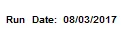
This date represents the date on which the data was pulled for the statement. If the statement is printed, use this date to help you determine if the printed statement contains the most recent time information.
Personal/Organizational Data Section

This section lists Personal and Organizational Data for the Employee.
Information: The values are as of the last date of the “Period” and may be different on other dates in the period.
| Row Title | Description |
|---|---|
| Name | Employee’s name; from IT0001 |
| Personnel Number | Employee’s Personnel Number; from IT0001 |
| Length of Service | Employee’s Total State Service in months; from Time Type 9000 |
| Position | Position to which the employee is assigned; from IT 0002 |
| Personnel Area | The agency to which the employee is assigned; from IT0001 |
| Overtime Period | The period of time over which overtime calculations are performed; from IT0007 |
| Work Schedule | The work schedule rule to which the employee is assigned; from IT0007 |
| Emp Group | The employee group to which the employee is assigned; from IT0001 |
| Sub Area | The personnel subarea to which the employee is assigned; from IT0001 |
| Time Mgt Status | The time management status to which the employee is assigned; from IT0007 |
| Org Unit Name | The name of the org unit to which the employee is assigned; from IT0001 |
| Org Unit | The organizational unit to which the employee is assigned; from IT0001. Some users know the field as the Org Unit short text. |
Leave Quotas Section
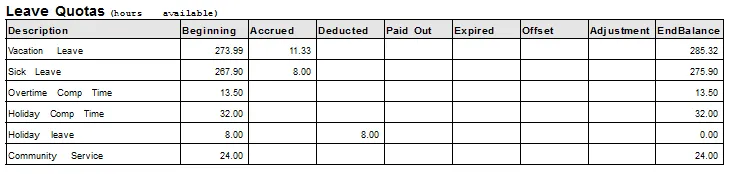
| Column Title | Description |
|---|---|
| Description | Name of the leave quota |
| Beginning | Balance at the end of the previous |
| Accrued |
Hours accrued/earned for the quota during the period:
|
| Deducted |
Hours deducted during the period
|
| Paid Out |
Hours paid out to the employee
|
| Expired |
Comp hours which have reached their aging limit and are simply removed
|
| Offset |
Hours that were offset during the period
|
| Adjustment |
Hours adjusted during the period
|
| End Balance |
Balance at the end of the period.
Beginning + Accrued – Deducted – Paid Out - Expired + Offset + Adjustment = End Balance |
If any of the values in the previous columns are incorrect, it will affect the End Balance shown on the Time Statement, even though the actual quota balance in the system may be correct.
Note: This section will display only rows for quotas that are found in the employee’s time evaluation results for that period. For example, if no OT Comp hours are found (employee’s OT comp balance remains 0 for the entire period), then no OT Comp row will be displayed.
This section lists summary details for the quotas holding hours available for absences.
- Vacation Leave
- Sick Leave
- Parental Leave (8 wks)
- Parental Leave (4 wks)
- Callback Comp
- Emergency Closing Comp
- Incentive Leave
- Overtime Comp Time
- Holiday Comp Time
- Travel Comp Time
- On-Call Comp Time
- Holiday Leave
- Communicable Disease Comp Time
- Bonus Leave
- Community Service Leave
- Community Service Leave – Tutoring
- Literacy Volunteer Leave
- Received Shared Leave
- Military Training Leave
- Advanced Vacation Allowed
- Advanced Sick Allowed
- CSL Tutoring
- Special Leave
- Special Bonus FY2018
- Special Bonus FY19-20
Calculated Time Results Section
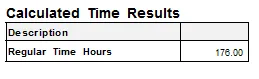
This section lists pertinent totals calculated by the Time Evaluation process.
- Regular Time Hours
- Overtime Paid Hours
- OT Comp Earned Hours
- Judicial Service Years
- SBLV FY19-20 YTD Used (Special Bonus Leave)
| Column Title | Description |
|---|---|
| Description | Name describing the total |
| Unnamed column | Number of Units – The unit of measure is in the description |
Note: This section will display only rows for the totals that are found in the employee’s time evaluation results for that period. For example, if no Overtime Paid hours are found, then no Overtime Paid Hours row will be displayed.
Supplemental and Premium Time Section
This section lists totals for any hours of supplemental and premium pay time. It also lists the rate or percentage rate for each item as of the last day of the period.
- Evening Shift Premium
- Weekend Shift Premium
- Night Shift Premium
- Holiday Premium
- On-Call
| Column Title | Description |
|---|---|
| Description | Name of the premium or supplemental pay item. |
| Hours | Total hours of the item. |
| Rate | The rate or percentage rate as of the last day of the period. |
Note: This section will display only rows for the totals that are found in the employee’s time evaluation results for that period. For example, if no Evening Shift Premium hours are found, then no Evening Shift Premium row will be displayed.
Viewing Time Statements for Multiple Employees at One Time
If you have entered an Org Unit or multiple Personnel Numbers in the selection criteria, the program will generate a Time Statement for each employee. The header title of the on-screen print preview page will indicate the page number of the first employee.

Use the page up or page down buttons to move between the pages.
Note: For most employees, the Time Statement will be a one-page report. However, the statement will wrap to a second page if an employee has enough data rows to extend that far.
Troubleshooting
If an employee has a break in service, he/she still will be able to pull up a time statement for the months in the break, but there will be no data below the Personal/Organizational data section.