Purpose
The purpose of this job aid is to explain the purpose of and how to use the PA Change Log.
The PA Change Log report transaction shows a log of changes that have been made to PA Infotypes. Changes are being logged for most of the commonly used PA Infotypes. These logs are available for changes made in the previous six (6) months. Change log data older than six months will be archived but is still available. Contact BEST for assistance in retrieving these records.
Transaction Code
The transaction code used for this report transaction is ZPACHGLOG.
Users with the following roles will be able to run ZPACHGLOG:
- HR Master Data Maintainer
- HR Master Data Approver
- HR Director Display
Initial Screen
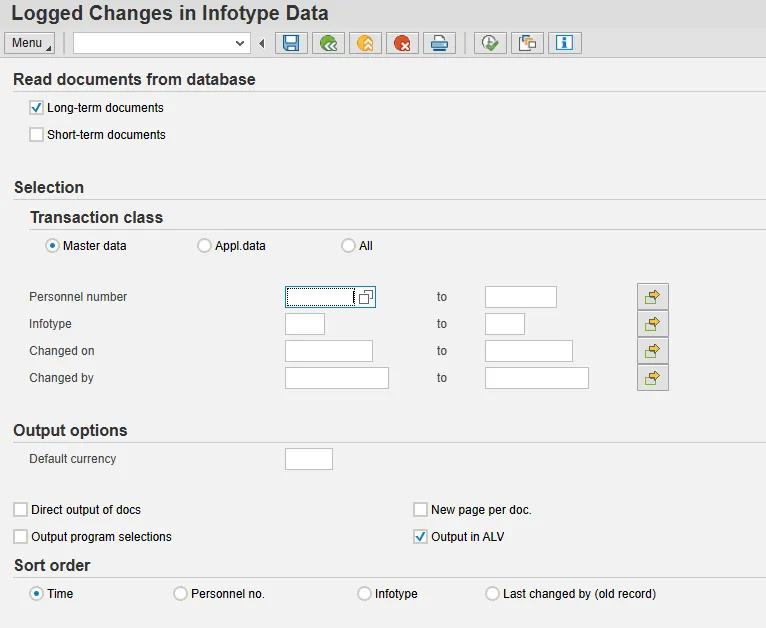
Selection Section
- Entering specific selection criteria will help the program run quicker and give more targeted results.
- Enter the Personnel Number of the employee(s) for whom the change log data is needed.
- Enter the value of the Infotype(s) for which change log data is needed.
- Enter a date or date range if date change(s) were made is known.
- Enter the Personnel Number of the person who made the changes.
Note: The other settings on the initial screen affect how the results are formatted. These settings will be covered later in this job aid.
Result Screen
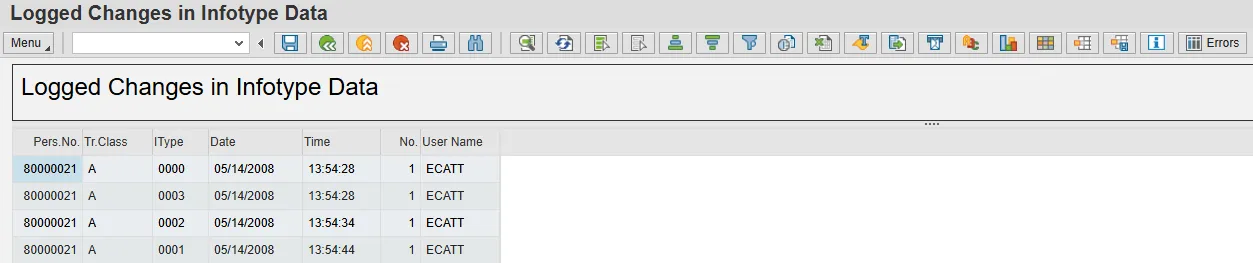
An overview list of changes is presented first. Double clicking on a row will display the detail screen for that change.
Note: By default, the oldest changes are listed first. The Sort Order selection option on the initial screen can be used to change the sort order to display by Personnel Number, Infotype, or the User who made the change.
The modify layout button can be used to control the format of the results.
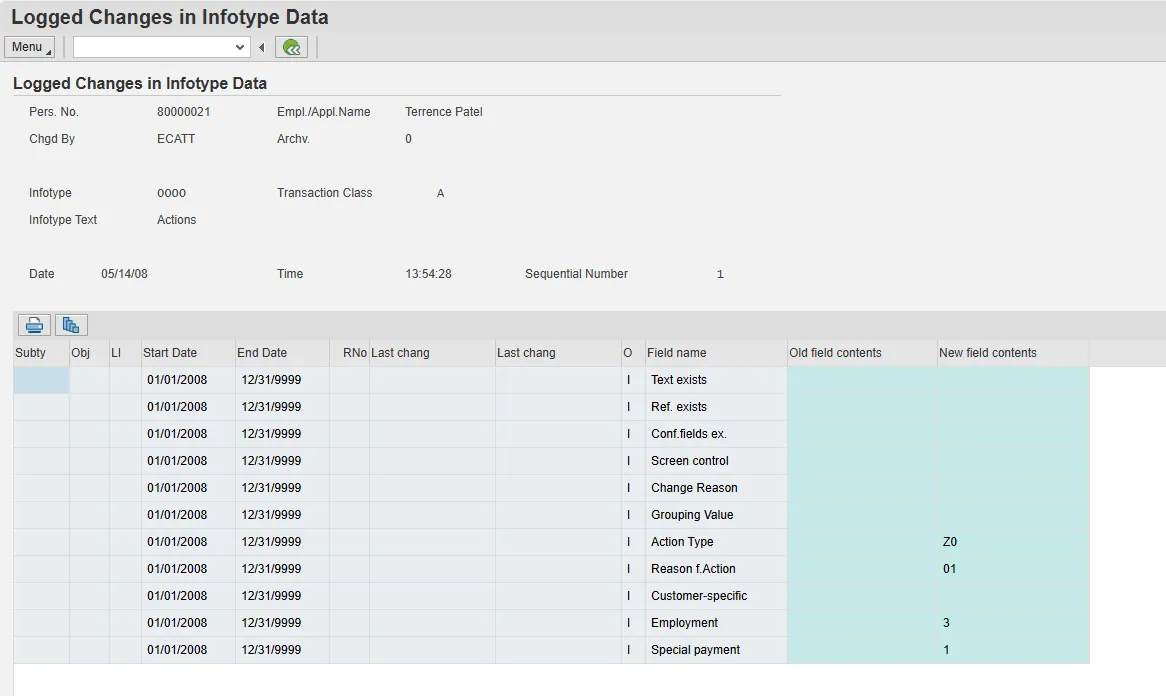
The detail screen has a header section and one or more record detail sections.
The header section displays the following information:
- Personnel Number and name of the employee;
- Infotype value and name; and
- Changed by and the Date and Time (who and when the change was made)
The record detail sections displays:
- The From and To validity dates of the record;
- The Type of change Action (Insert, Delete, or Update); and
- The Old and New values for the specific Fields on that Infotype
An asterisk (*) to the left of the Field name in the record detail section indicates there is a difference between the Old and New values for that Field. This indicator will be most helpful in cases where an existing record has been Updated (by using the Change button).
Checking the “Direct output of docs” checkbox will give the ability to skip the overview list screen and proceed directly to a sequential display of detail records.
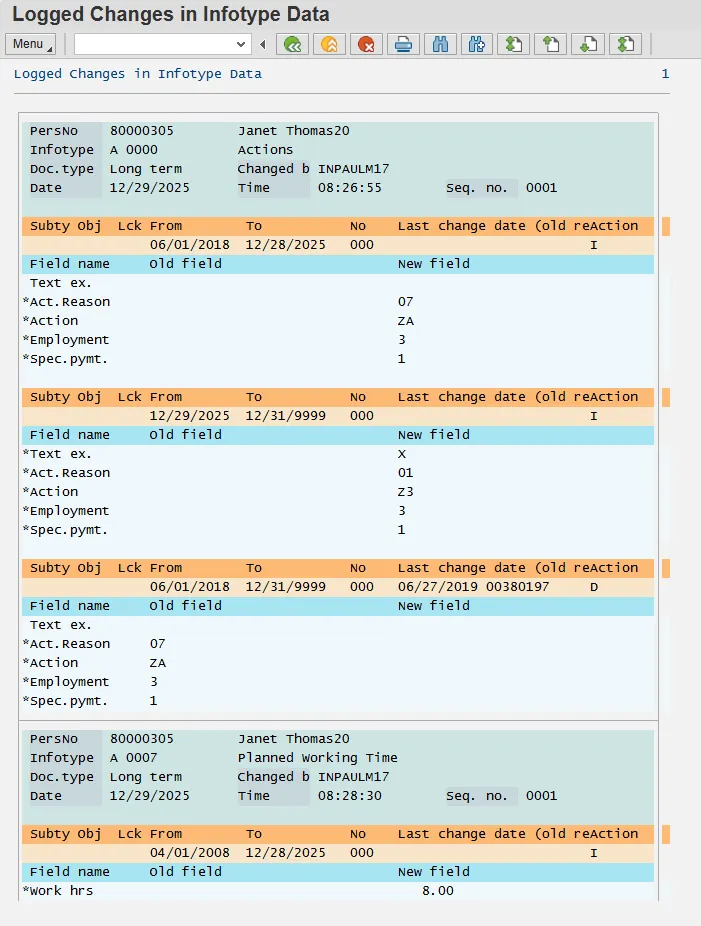
Checking the “Output program selections” checkbox will display the selection criteria the results shown below.
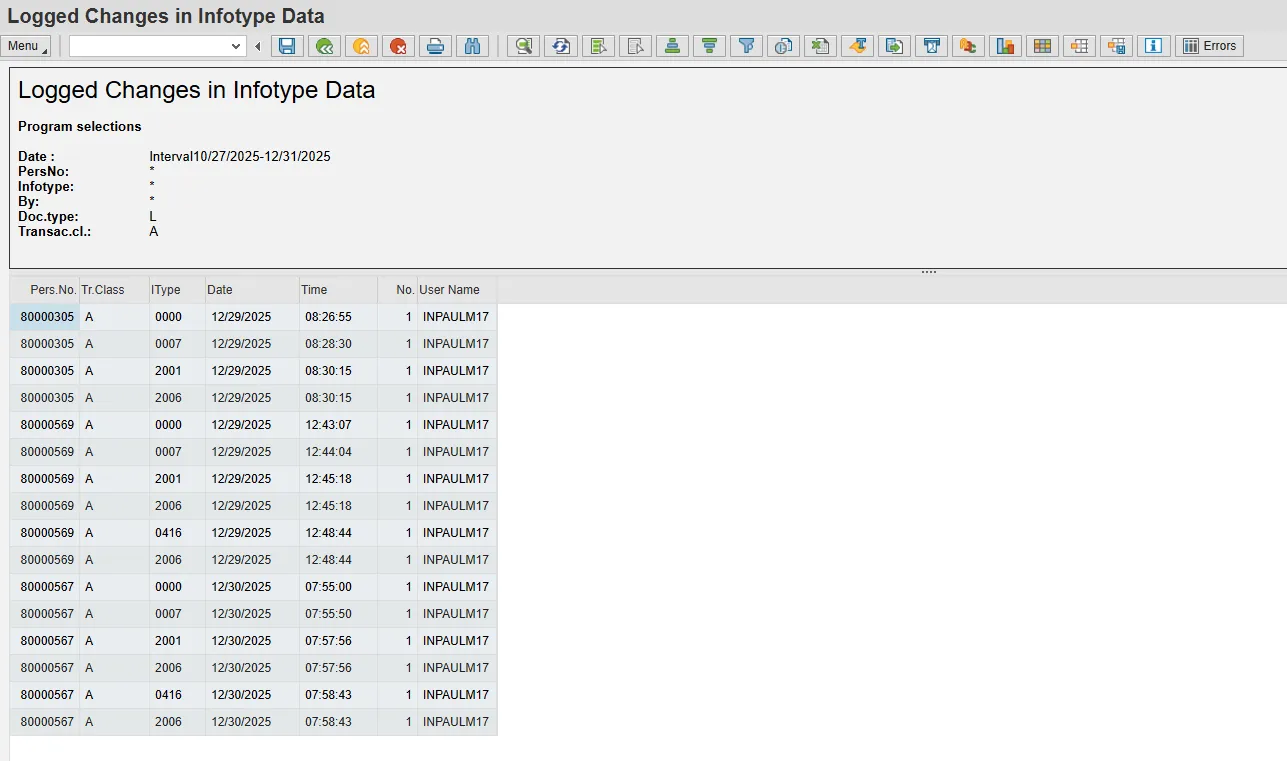
Checking the “New page per doc” checkbox works only if the Direct output of docs checkbox is checked. It results in a more visible separation of the records for each change.
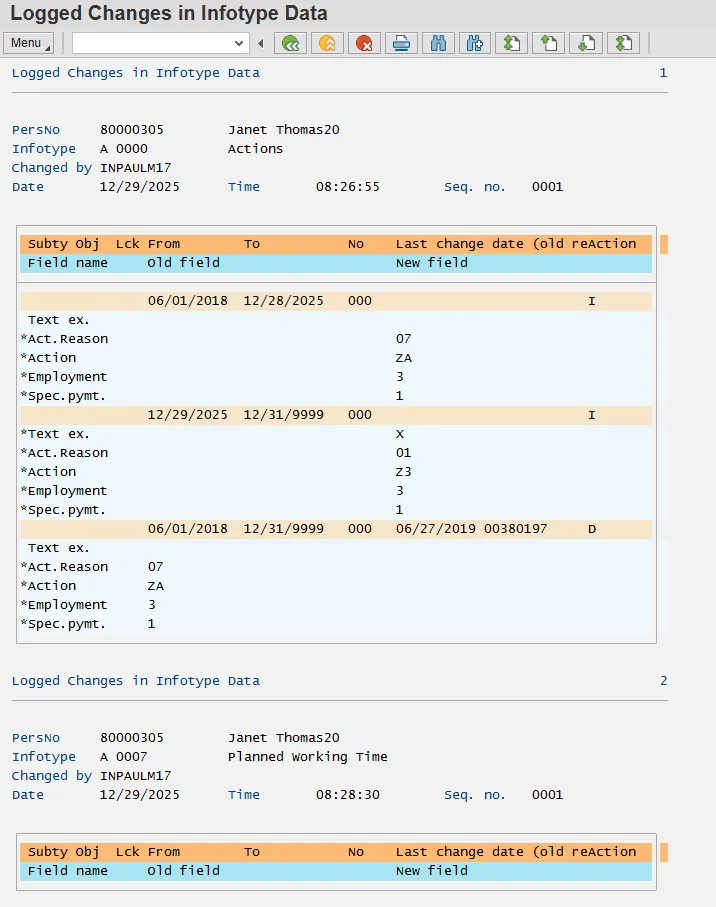
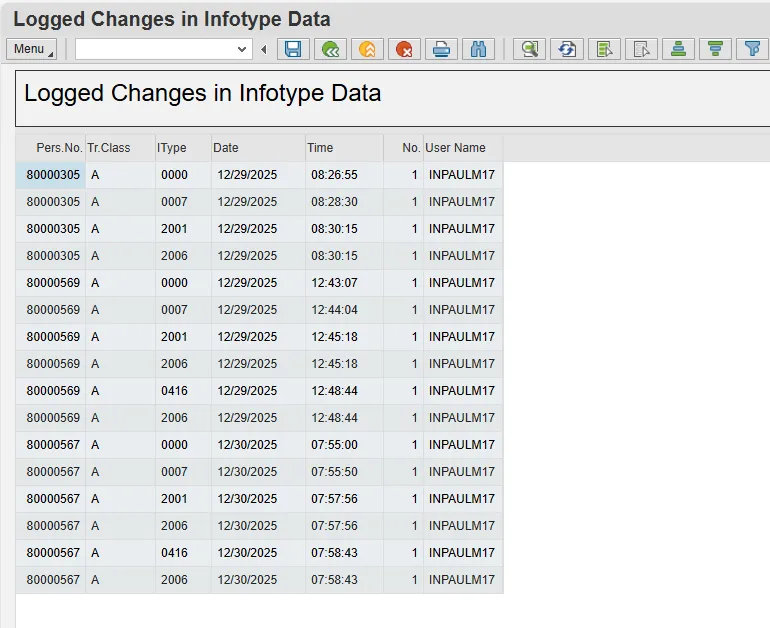
Checking the “Output in ALV” checkbox presents a different overview list format -- one that is in an ALV grid.
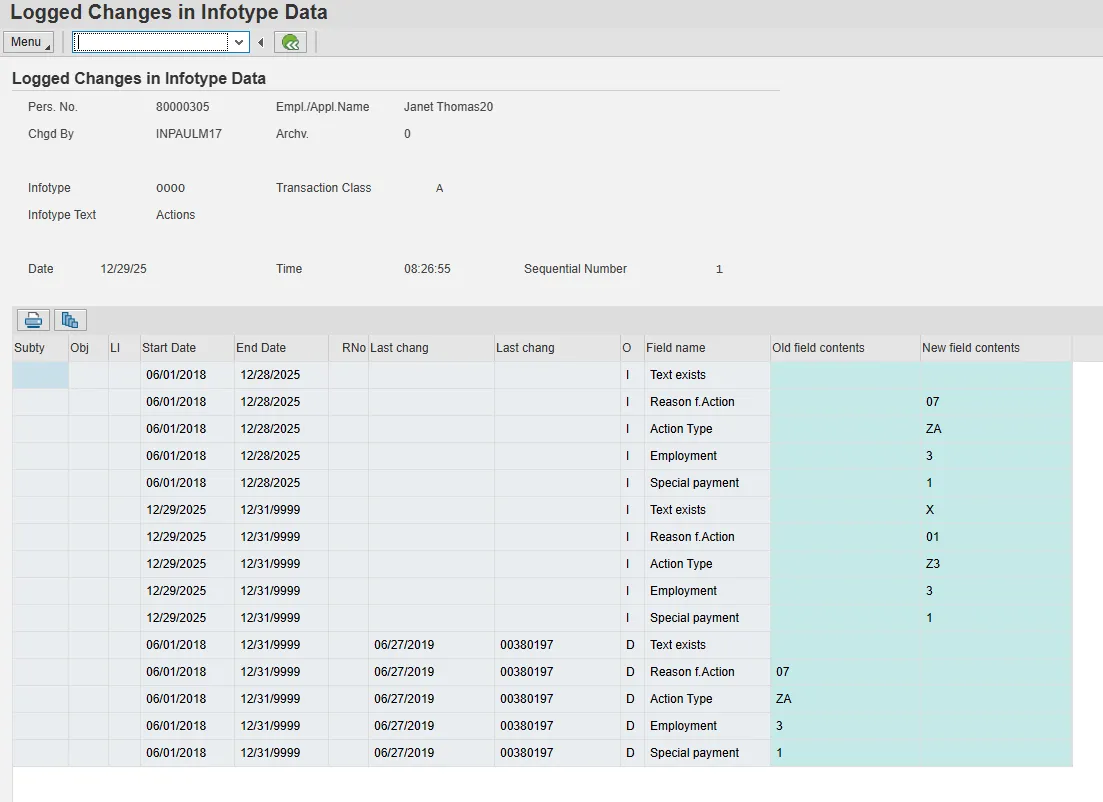
Double-clicking on a row will display a different presentation of the detail record data. Some consider this format to be less user-friendly.
The “Sort Order” selection radio buttons can be used to control the order in which changes or records are displayed in the overview list or direct output of documents list. The default sort order is by oldest change first. Other sort by options include:
- The Personnel Number;
- The Infotype; and
- The User who made the change
