Purpose
The purpose of this job aid is to explain the Create/Maintain Grievance transactions which are used to document an employee grievance. Grievance information should be entered as instances occur so that the system is current.
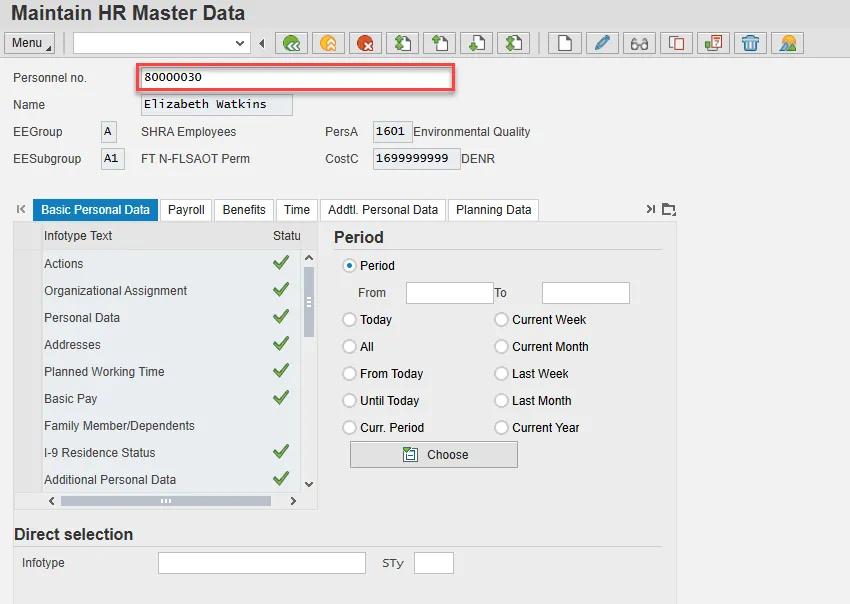
Infotypes that currently exist for the employee accessed are identified by green check marks to the right of the infotype descriptions.
An overview of the process contains some or all of the following steps:
- The Employee identifies a violation of Policy/Procedure and discusses with management.
- The Agency Representative/Management with the input from the Grievance Maintainer makes a decision to deny or settle the issue.
- The Agency Representative/Grievance Maintainer issues decision to the Employee.
- The Grievance Maintainer enters the appropriate information into Integrated HR/Payroll System.
- The Employee receives Management decision on the grievance and decides whether or not to continue.
- The Agency Representative Grievance Maintainer monitors the Grievance progress until required submission to Mediation or Appeals Court.
- The Mediation/Appeals Court issues the final decision/step in the Grievance process.
- The Grievance Maintainer – closes grievances as appropriate and updates the Employee record in the Integrated HR/Payroll System.
Create/Maintain Grievances
There are 19 steps to complete this process.
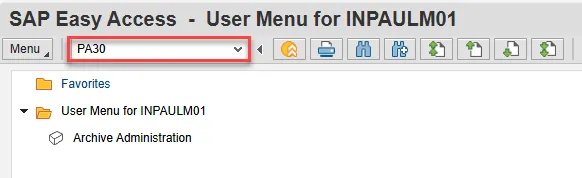
Step 1. Access transaction code PA30.
Step 2. Enter the Personnel number in the Personnel no. field and click Enter.
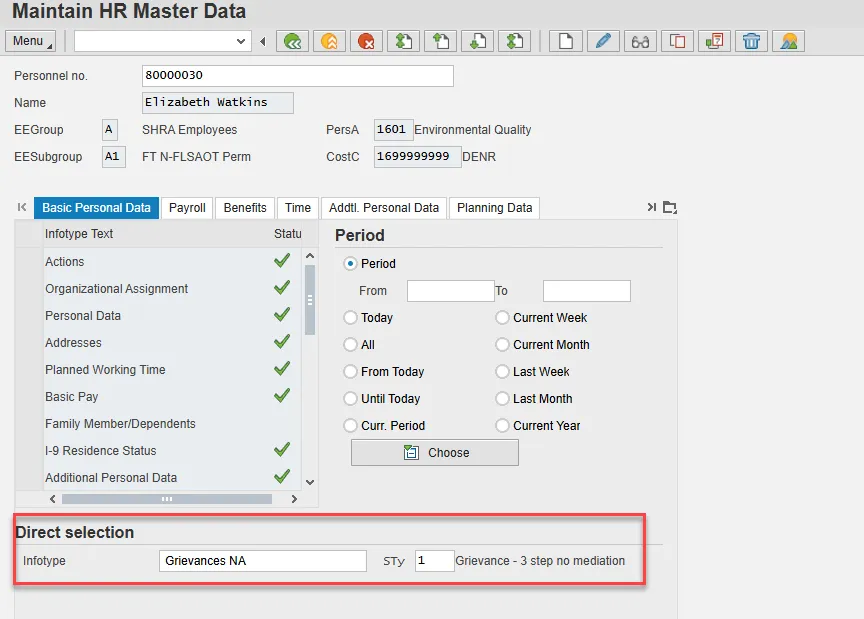
Step 3. In the Direct selection area, type 102 in the Infotype field and 1 in the STy field and click Enter.
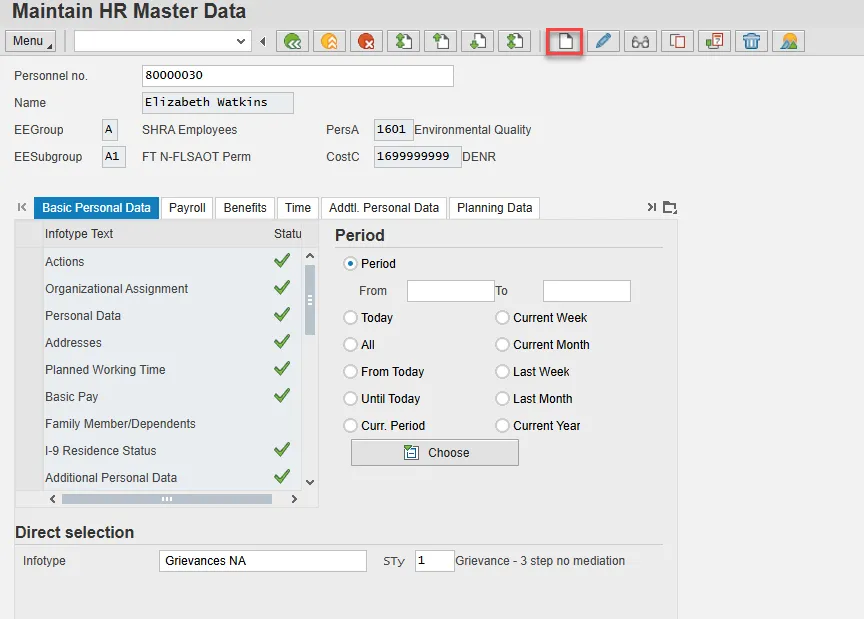
Step 4. Click the Create button.
Step 5. Complete the following fields and click Enter.
- Start (date)
- Reason
The start date is when the Grievance process began. When records are created, they are assigned a “Start Date.” Because the end dates are not typically known, SAP automatically applies an end date of 12/31/9999. Once the actual “End Date” is known, the record is maintained (delimited) to apply the actual “End Date.”
You can use the matchcode to find the desired reason.
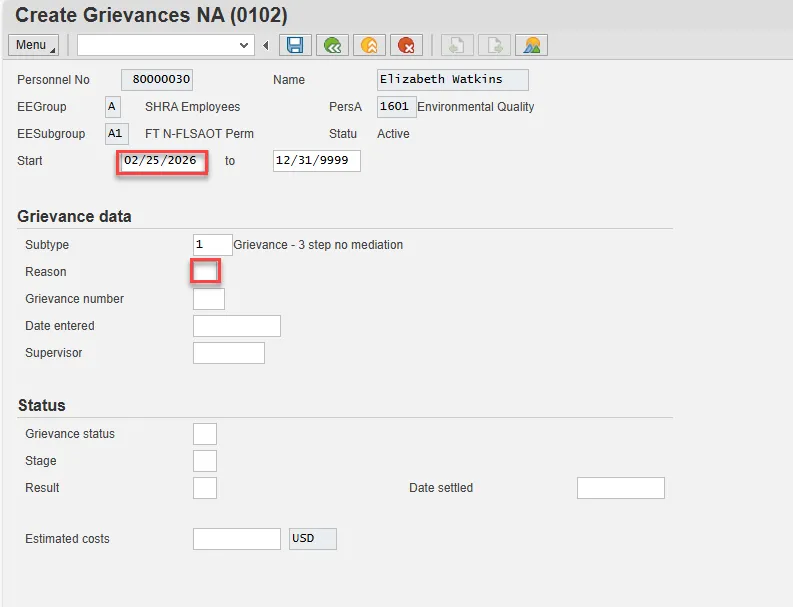
Step 6. Click Menu > Edit > Maintain text on the toolbar at the top of the screen.
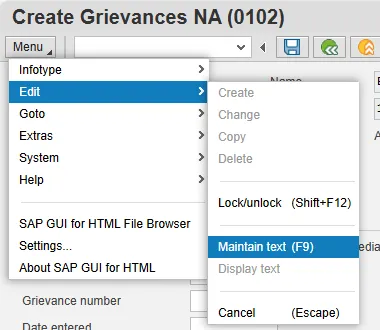
Step 7. Enter appropriate text in the Infotype Text box that is displayed. Don’t forget to Save your comments.
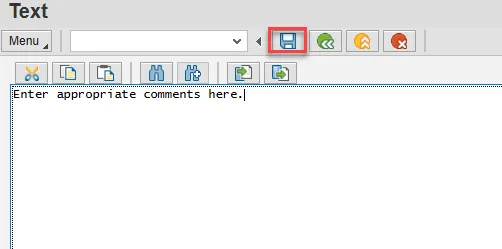
Note that the screen now displays an icon indicating that there are comments attached to this record.
Step 8. Complete the following fields, then click Enter and Save.
- Date Entered
- Supervisor
- Time from
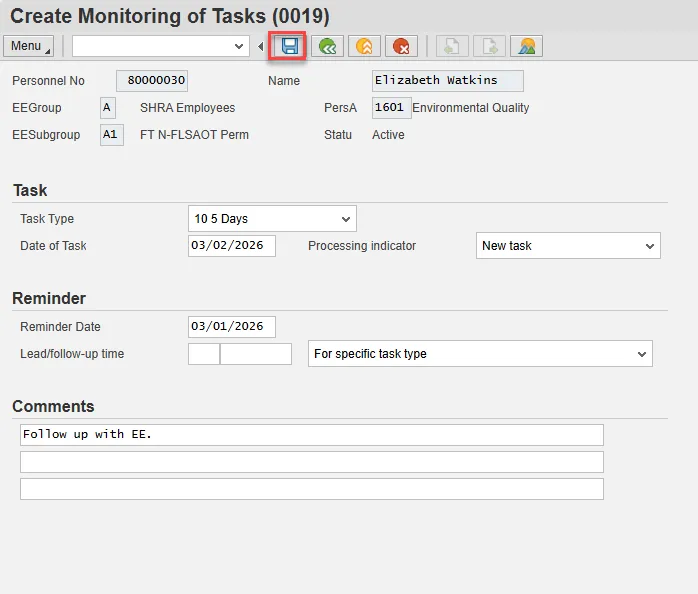
Step 9. On IT0019, complete the following fields, then click Enter and Save.
- Task Type
- Date of Task
- Processing Indicator
- Comments
Note: Create a Monitoring of task during each step as a reminder to maintain the IT0102. Use dates from OSHR or OSHR-Approved Agency Policy.
The infotypes have been created. Review via PA20 to ensure accuracy.
Step 10. Click the All button.
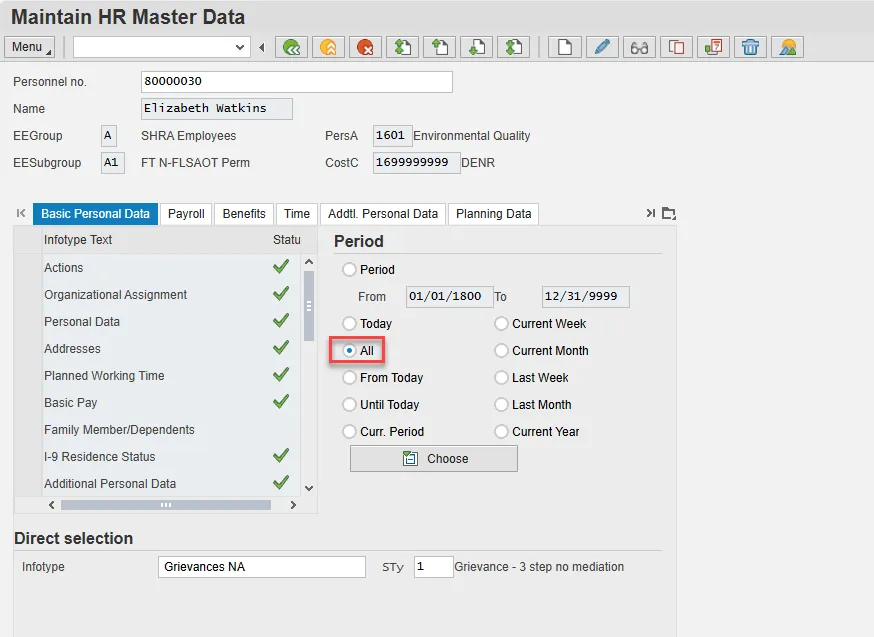
To Maintain the Grievance
Step 11. Choose Overview.
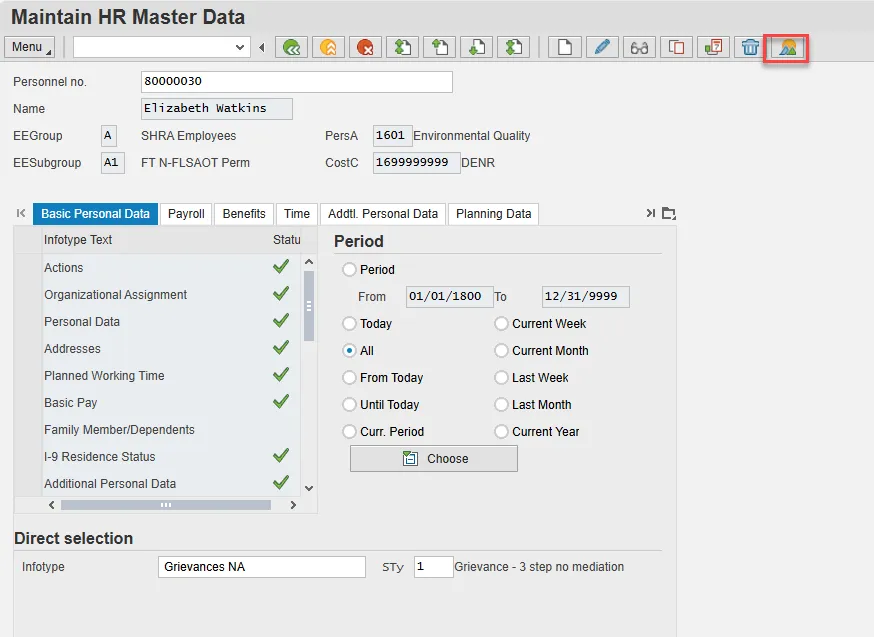
Step 12. Highlight the appropriate row and choose Copy.
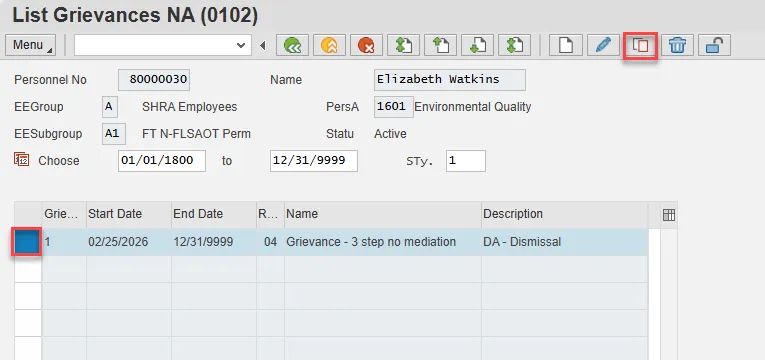
Step 13. Enter the beginning date of the record in the Start field.
Step 14. Enter the appropriate selection in the Time from field.
- Subtype 1 – Select appropriate step
- 50-Initial Filing
- 51-1-Step 1
- 52-1-Step 2
- 53-1-Step 3
- Subtype 2 – Select appropriate step
- 50-Initial Filing
- 54-2-Mediation
- 55-2-Hearing
- Time from for both Subtypes 1 and 2
- 56-FAD
- 57-OAH
- 58-SPC
- 59-Court
Step 15. Enter the appropriate selection in the Resolved at field.
- Subtype 1 – Select appropriate step
- 60-Step 1-1
- 61-Step 1-2
- 62-Step 1-3
- 63-Step 2-1
- 65-FAD
- Subtype 2 – Select appropriate step
- 63-Step 2-1
- 64-Step 2-2
- 65-FAD
- Select appropriate (not resolved at any other step)
- 66-OAH/SPC
- 67-Appeal to Court
Step 16. Enter the appropriate selection in the Results field.
Step 17. Enter the appropriate selection in the Estimated costs field.
Step 18. Enter the appropriate selection in the Date Settled field, then Enter and Save
Note: Repeat steps 9-21 for each step of the Grievance process.
Once the actual “End Date” is known, the record is maintained (delimited) to apply the actual “End Date.”
Step 19. Click Back. The infotypes have been created. Review via PA20 for accuracy.