Purpose
The purpose of this Business Process Procedure is to explain how to display budgeted salary information for a position in the Integrated HR-Payroll System.
Trigger
The user wishes to display the relationships this position has with other organizational objects, such as organizational unit, job, person, or workflow approval relationships.
Business Process Procedure Overview
The relationships infotype (1001) provides the method to attach the position to other objects within the system. The following relationships are currently in use in BEACON:
- A 002 - Reports to (position of this position's supervisor)
- A 003 - Belongs to (organizational unit)
- A 008 - Holder (individual who is in the position)
- A 012 - Manages (this position manages these other positions)
- A AA1 - Agency Approver for (approves OM/PA workflow items at the Agency level for this organizational unit and below)
- A BA1 - OSBM Approver for (approves OM/PA workflow items at the OSBM level for this organizational unit and below)
- A DA1 - Division Approver for (approves OM/PA workflow items at the Division level for this organizational unit and below)
- A FA1 - Funding Approval for (approves OM/PA workflow items and enters/changes data on workflow items at the Funding level for this organizational unit and below)
- A OA1 - OSP Approver for (approves OM/PA workflow items at the OSP level for this organizational unit and below)
- A SOM - BSS OM Activator for (BEST Shared Services OM activator for workflow)
- A SPA - BSS PA Activator for (BEST Shared Services PA activator for workflow)
Access Transaction
Via Transaction Code: PO13D
Procedure
There are 10 steps to complete this process.
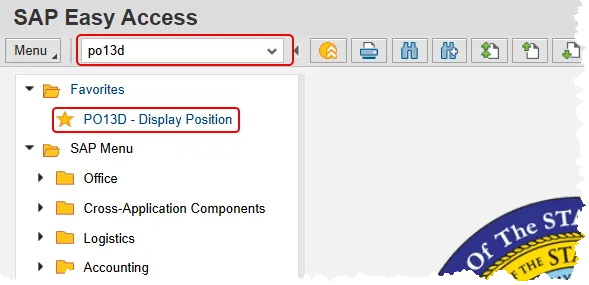
Step 1. Enter po13d in the command field and press enter, or double click it from your favorites folder if you’ve previously saved it there.
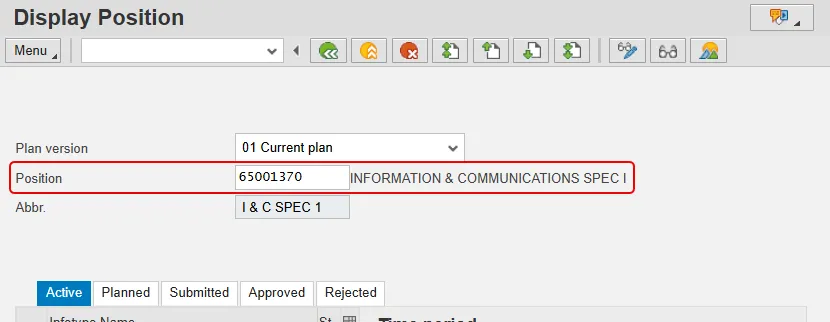
Step 2. Enter a position number and press Enter. Review the position title that appears to confirm that the correct position number has been input. This help document will use position 65001370 from the training environment.
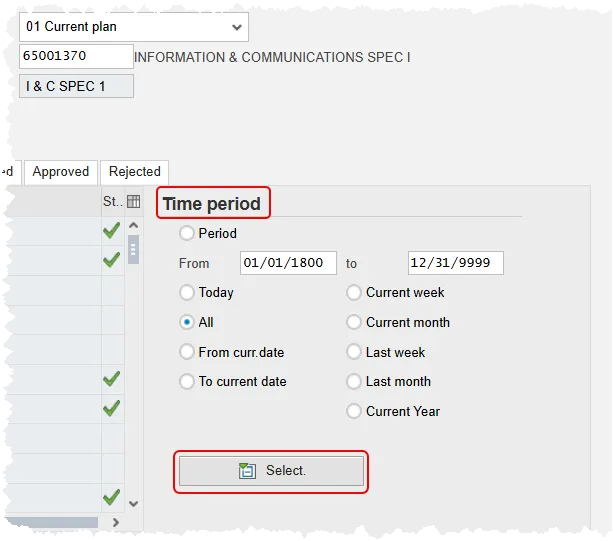
Step 3. Optional step: You may wish to change the time period to bring back either all records or a subset of them. The system will default to returning current and future dated records only. This help document will use the All option as an example.
In the Time Period section select the option that best suits your needs, then click the Select button.
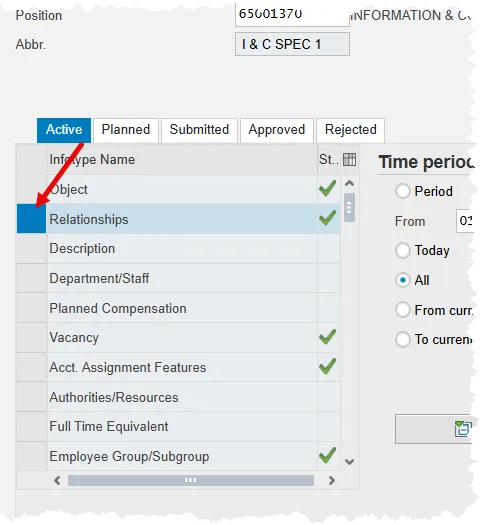
Step 4. Select the Relationships infotype by clicking the gray square to the left of the line.
Step 5. Click the Overview button to view a list of all Relationships within the time period selected.
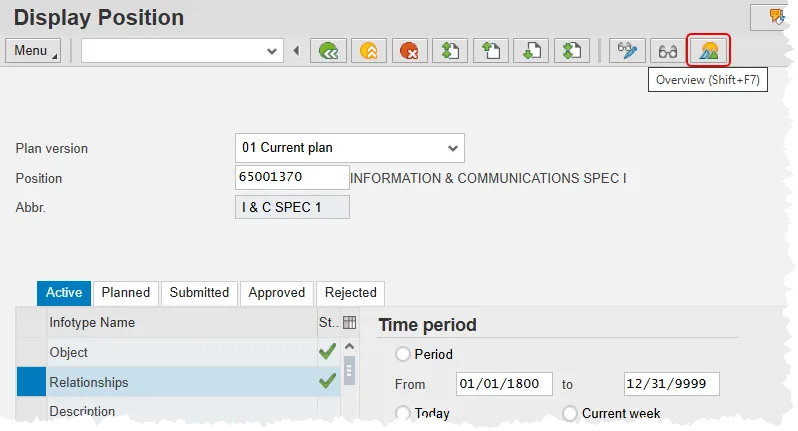
Note: If you click Display, you will only receive one record at a time and will need to click on the Next record button to move throughout all relationship records.
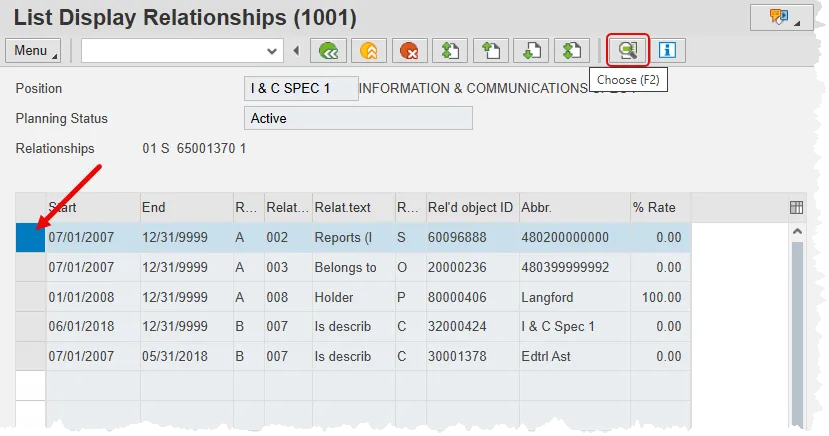
Step 6. A list of Relationships subtypes is displayed. The subtypes for each record are seen in the 3rd, 4th, and 5th columns. You can view full details for any of the records. This help document will use the A 002 Reports record.
Select the subtype you wish to view by clicking the gray box on the left side of the line, then click the Choose button.
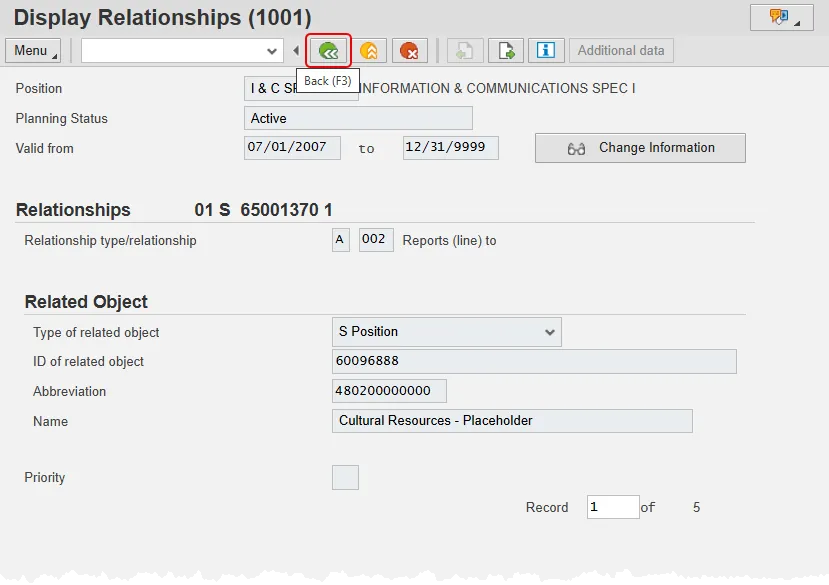
Step 7. Review the screen. When done, click the Back button to be returned to the Overview screen.
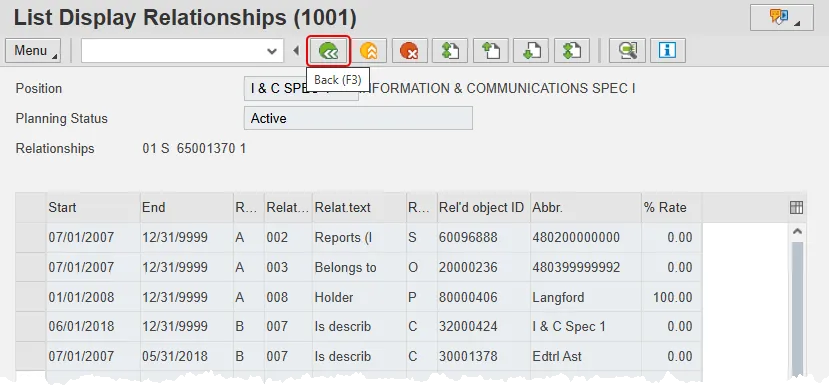
Step 8. Repeat steps 6 and 7 as needed to view other Relationships subtypes. When complete, click the Back button to return to the Display Position screen.
Step 9. Click the Back button to return to the SAP Easy Access Screen.
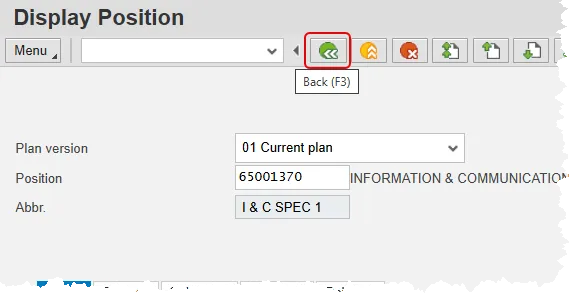
Step 10. The system task is complete.
Below are the various Organizational Management relationships you may see. You will also see a list of security roles attached to the position. Your agency’s data owner will have more information about these subtypes.
- A 002 - Reports to (position of this position's supervisor)
- A 003 - Belongs to (organizational unit)
- A 008 - Holder (individual who is in the position)
- A 012 - Manages (this position manages these other positions)
- A AA1 - Agency Approver for (approves OM/PA workflow items at the Agency level for this organizational unit and below)
- A BA1 - OSBM Approver for (approves OM/PA workflow items at the OSBM level for this organizational unit and below)
- A DA1 - Division Approver for (approves OM/PA workflow items at the Division level for this organizational unit and below)
- A FA1 - Funding Approval for (approves OM/PA workflow items and enters/changes data on workflow items at the Funding level for this organizational unit and below)
- A OA1 - OSP Approver for (approves OM/PA workflow items at the OSP level for this organizational unit and below)
- A SOM - BSS OM Activator for (BEST Shared Services OM activator for workflow)
- A SPA - BSS PA Activator for (BEST Shared Services PA activator for workflow)