Purpose
The purpose of this Business Process Procedure is to explain how to create the Cost Distribution tab (Infotype 1018) while approving a Create New Position action in the Integrated HR-Payroll System.
Trigger
The Fund Approver must approve a PCR for the creation of a new position that requires the Cost Distribution infotype to be created/updated.
Business Process Procedure Overview
The Cost Distribution tab (infotype 1018) must be created prior to Workflow approval by the Fund Approver so that a complete PCR goes to OSBM for approval. The HR Master Data Maintainer role does not have security access to this infotype.
Access Transaction
Via Menu Path: Your menu path may contain this custom transaction code depending on your security roles.
Via Transaction Code: SAP Business Workplace (SBWP)
Procedure
There are 16 steps to complete this process.
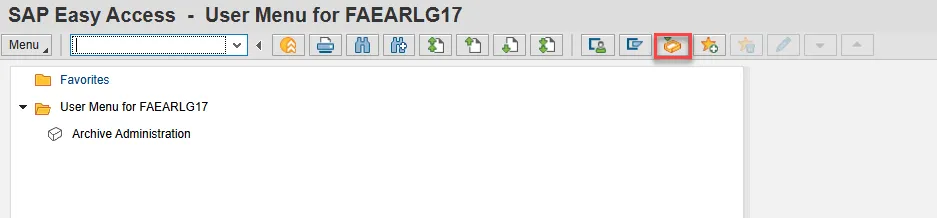
Step 1. On the SAP Easy Access screen, click the SAP Business Workplace (Ctrl+F12) button.
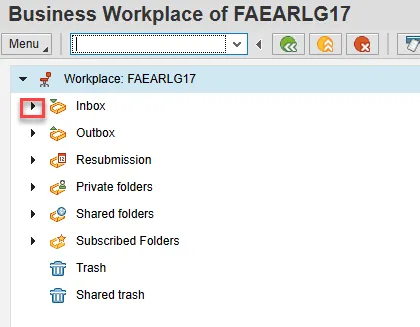
Step 2. Click on the expand node next to the Inbox folder to see its subfolders.
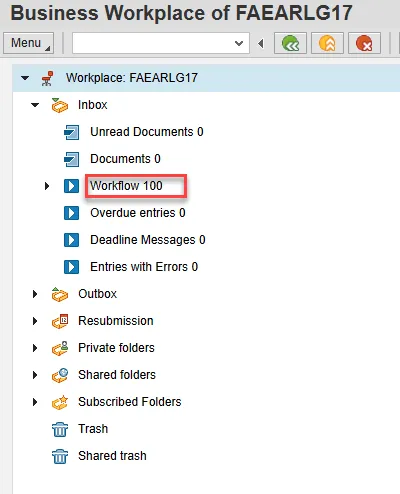
Step 3. Click on the Workflow subfolder to the list of PCRs awaiting review.
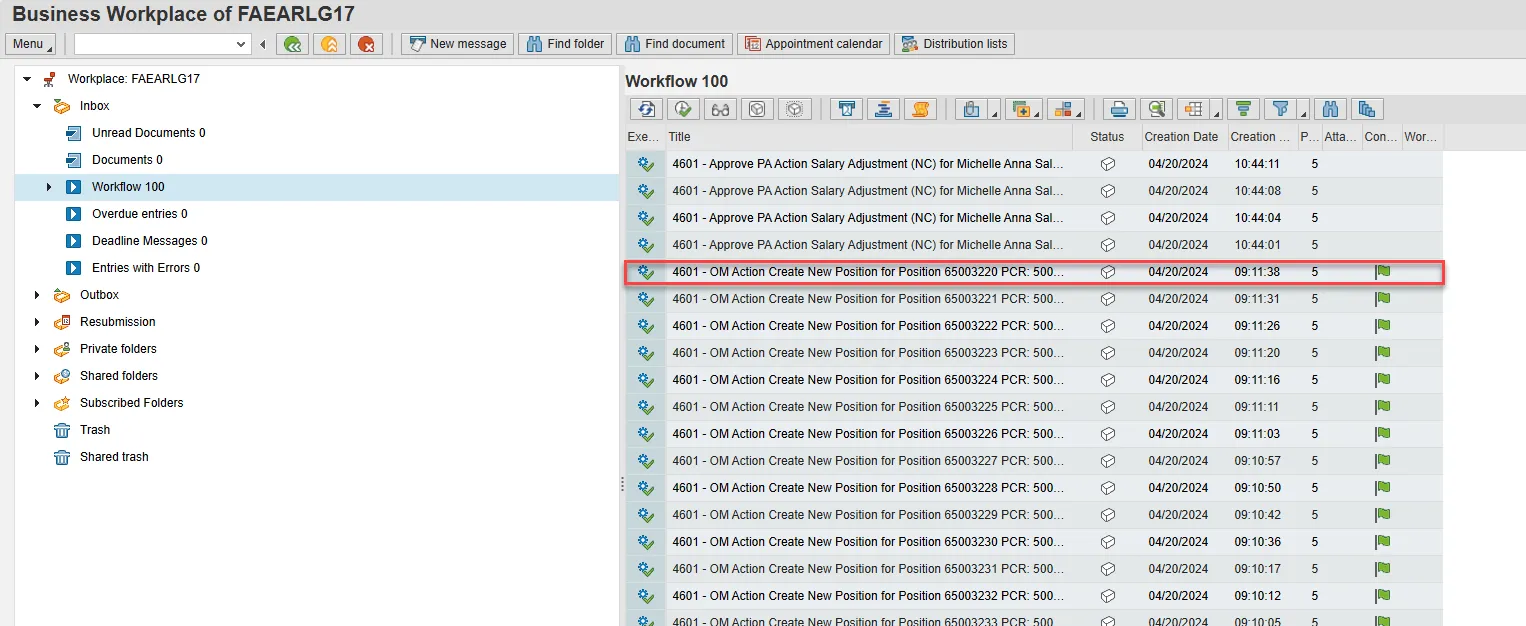
Step 4. Double-click the PCR that needs approval. Remember, cost distribution information must be added prior to approval so that the PCR moves through Workflow appropriately.
Step 5. Click the Cost tab.
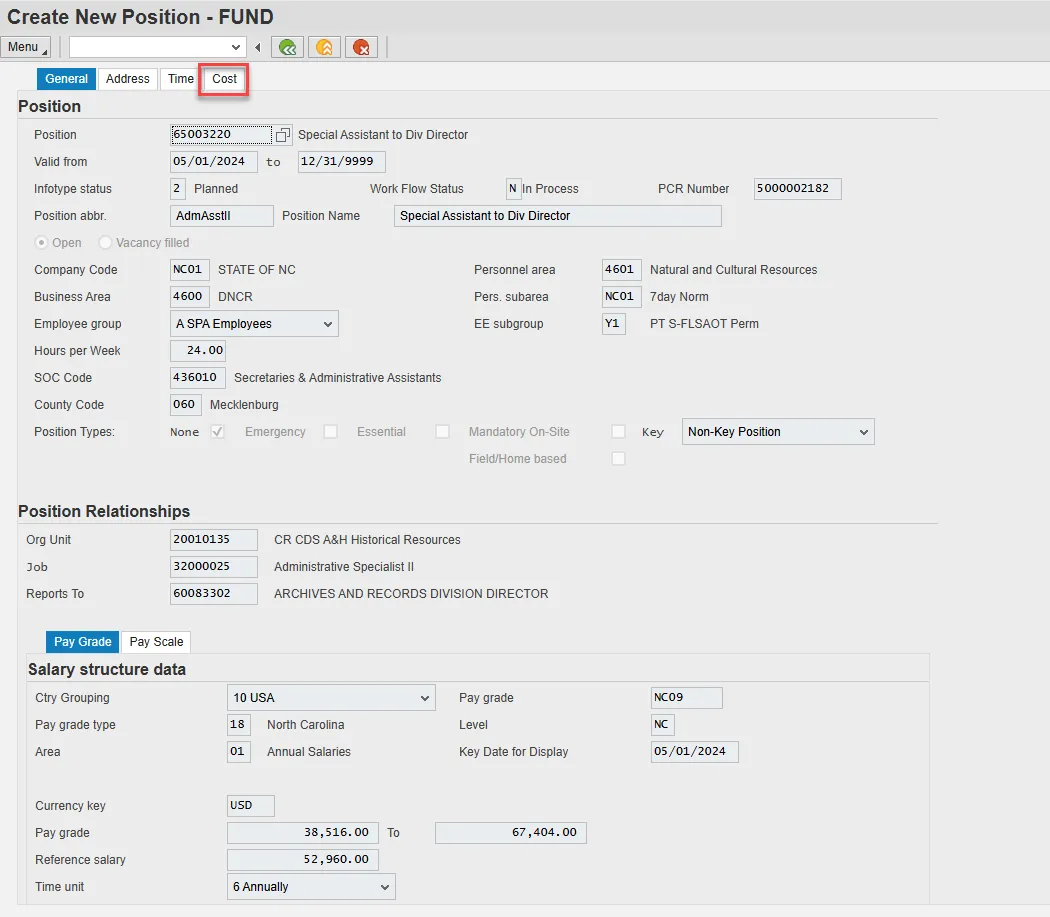
Step 6. Click the Create/Update button.
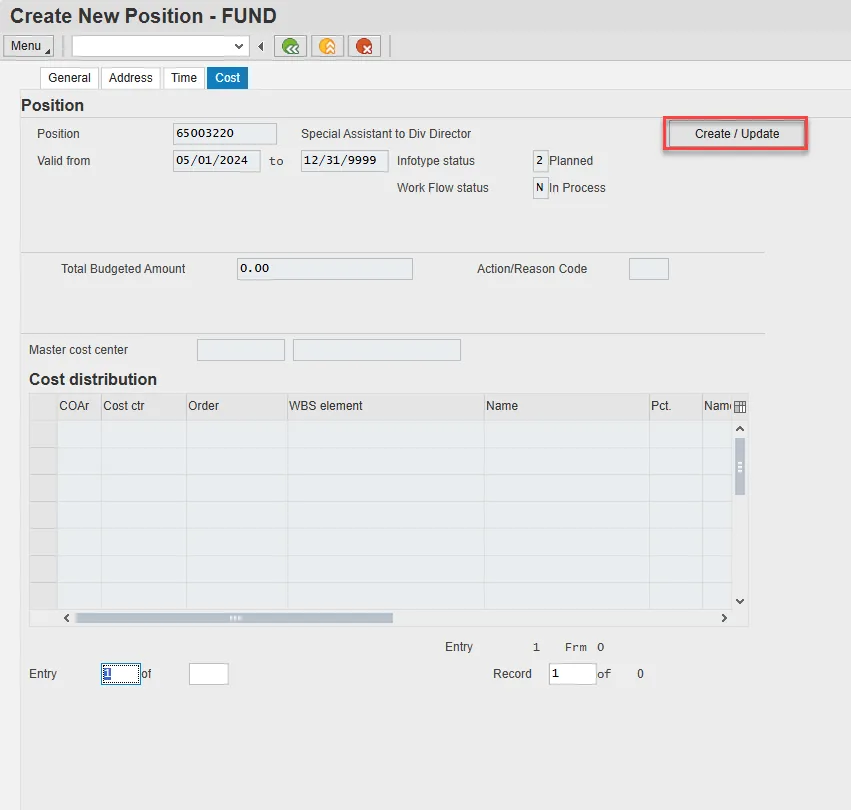
The proper way to update positions for NCFS new data is to have a 3-way match between the Cost Center, Internal Order Description, and Fund in the HR/PY system.
To add the NCFS data we recommend you use as a guide the NCFS Internal Order Crosswalk (transaction ZNCFSXWLK) which is available to ensure that you have the correct information for the 3-way match on a position.
Reference the Job Aid link below which also illustrates the translation from NCFS to the Integrated HR/PY system:
Link: FN-05 Conversion from NCFS to SAP
Example:
NCFS Internal Order Crosswalk (Transaction – ZNCFSXWLK)
The crosswalk shows an internal order description (38 characters) which includes the NCFS Budget Fund and NCFS Agency Mgmt. Unit. These translate into the HR/PY Fund and HR/PY Cost Center which are added to the PO13 cost distribution transaction. The internal order number is connected to the internal order description; in this example is 100000066272.

Step 7. Enter the following cost distribution data in the appropriate fields:
- Cost Center (Cost ctr) – (Two-digit Agency + NCFS Agency Management Unit + 0) 4646001000
- Internal Order Number (the description field of the order (contains the NCFS company and full center)) 100000066272
- Percentage (Pct)
- Fund (the SAP fund ends in 01 for appropriated, 04 for federal, 05 for receipts) and the appropriate SAP funding source should be chosen to coincide with the NCFS funding source on the internal order 1000 for appropriated, 3000 for federal, or 2000 for receipts. (Two-digit Agency + NCFS Budget Fund+(01, 04, or 05) 4610510605
Note: Remember to scroll to the right to add the appropriate fund.
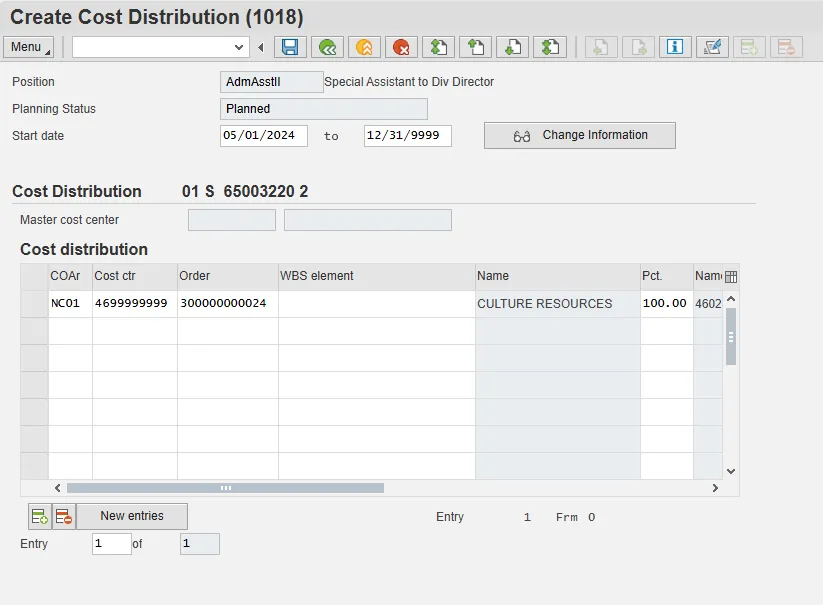
Step 8. Press Enter. The Budget Distribution screen displays.

Step 9. Enter the salary information in the Total Budgeted Amount field.
Step 10. The Action/Reason Code of 100 will default. DO NOT change it.
Step 11. Click the Enter button at the bottom right corner of the screen when the salary has been updated. You are returned to the Create Cost Distribution (1018) infotype.
Step 12. Click the Save (Ctrl+S) button.
Step 13. Look at the bottom left section of the screen for confirmation that the record has been updated.
Step 14. Click the Back button.
Step 15. Click the Complete Work Item button in the pop-up.
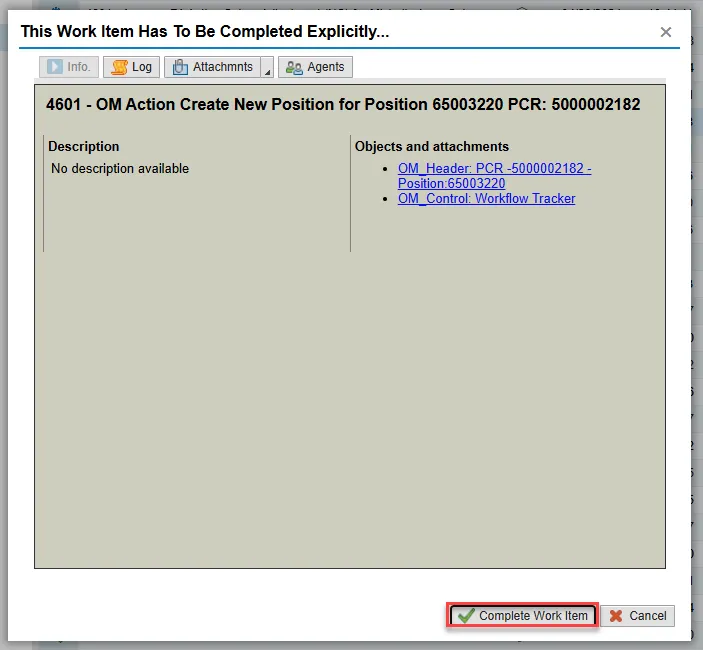
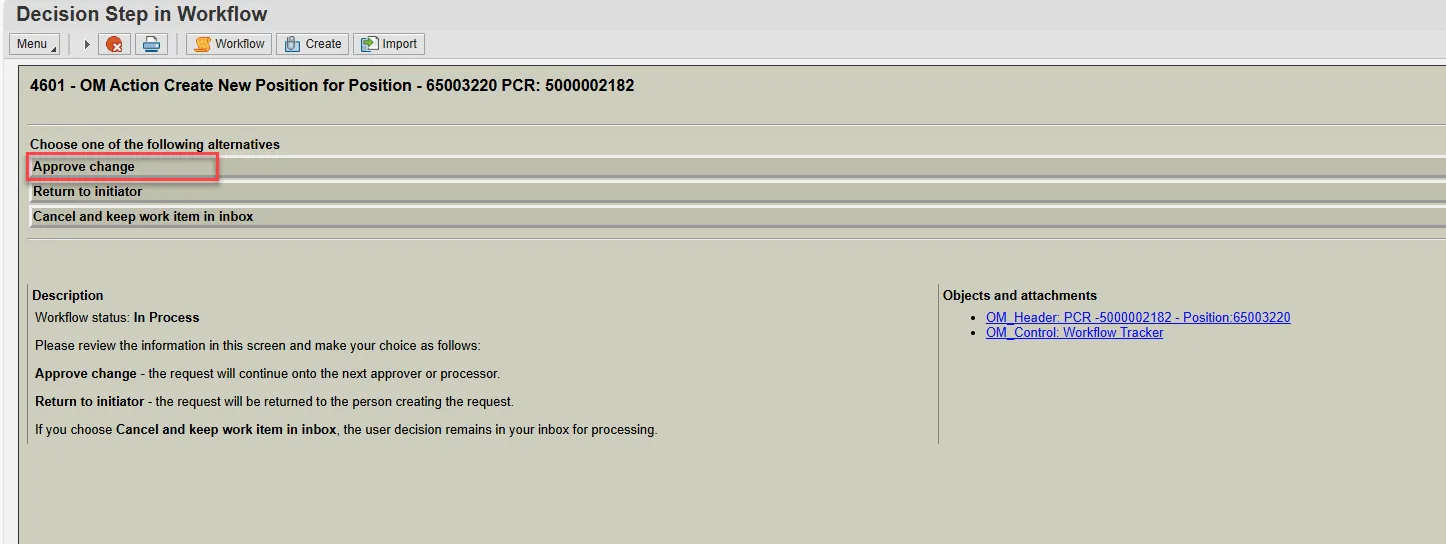
Step 16. Click the Approve Change option to complete the fund approval process for the PCR.
The process is complete.