Purpose
The purpose of this Quick Reference Guide (QRG) is to Close Unapplied Cash Advances by Employee Reimbursement in the North Carolina Financial System (NCFS).
Introduction and Overview
This QRG covers Closing Unapplied Cash Advances by Employee Reimbursement. A Cash Advance is a request for payment made in advance by an employee to cover expenses they are expected to incur while traveling or conducting business. If a Cash Advance has been paid but the expenses incurred did not use the full advance, thus closing the Cash Advance through the system, a refund from the employee for the unused portion will need to be deposited and an expense report will need to be keyed to close the remaining unapplied Cash Advance.
Closing Open Cash Advances
Starting from the NCFS Home Screen follow the 28 steps to close an open cash advance.
Step 1: After the employee reimbursement has been received and deposited into the bank, log in to the NCFS portal with your credentials to access the system.
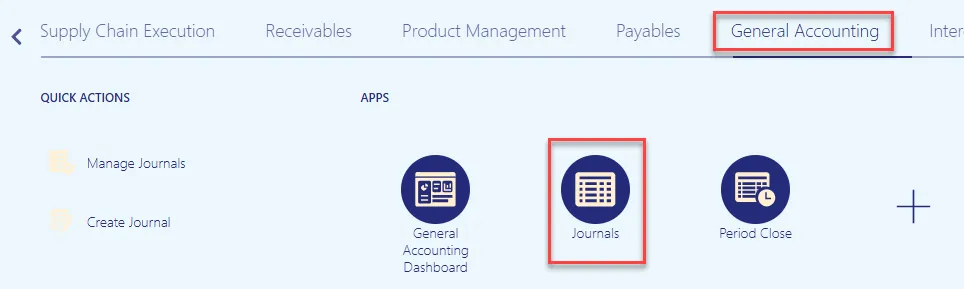
Step 2: From the Home page, click the General Accounting tab, then select the Journals application.
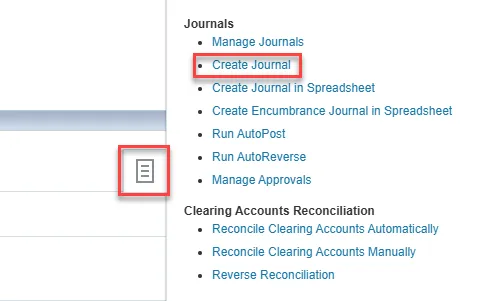
Step 3: Click the Tasks icon and select Create Journal.
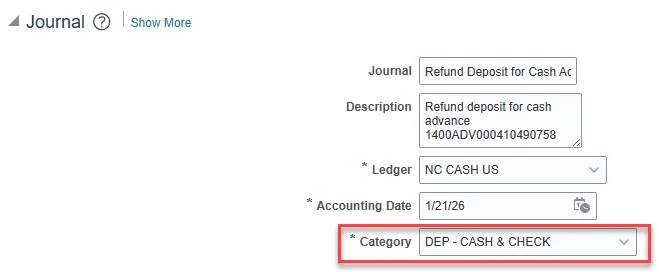
Step 4: The Create Journal page opens. Enter relevant information in the fields in accordance with your agency’s journal procedures. For instructions on how to create a journal, refer to the QRG GL-02 Create Journals.
Step 5: For this particular journal, the Category will need to reflect a Deposit selection. The Category used for employee re-payments will typically be DEP – CASH & CHECK.
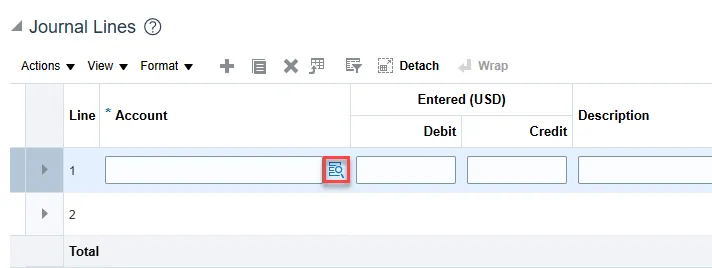
Step 6: Scroll down to the Journal Lines section and click the LOV picker icon.
Step 7: The Account segments appear. Populate the account details using the LOV picker and click the OK button.
Note: A credit must be completed for the same account segment that is in the Cash Advance for the amount of the open/unapplied advance being closed.
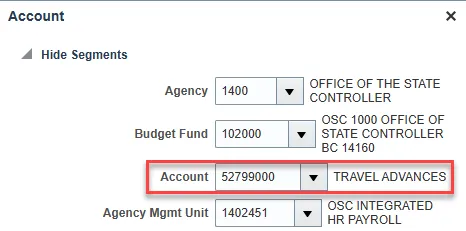
Step 8: Select segment value details in Journal Lines. For this example, we entered the amount of the open/unapplied cash advance that we are crediting back to the 52799000 Travel Advances account. You will also need to enter a corresponding debit line to cash account 11120000 Cash for the same amount.
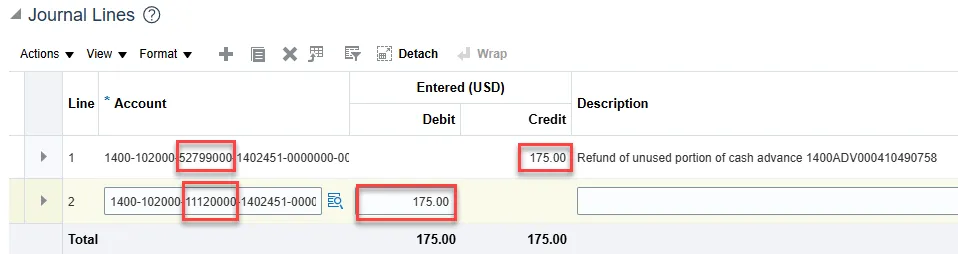
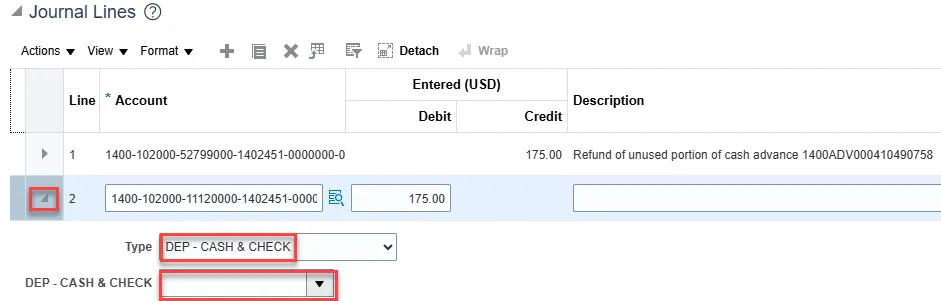
Step 9: When entering the corresponding debit line to cash account 11120000 Cash, the bank account number where the funds are deposited is also needed since this line will interface to DST. If the bank account number is not entered correctly then this will cause a bank reconciliation issue. To enter the bank account number, expand the cash line using the expand arrow.
Step 10: Select the type as DEP – CASH & CHECK (if this is the correct deposit type that was used).
Step 11: Enter the correct Bank Account number in the DEP – CASH & CHECK dropdown box.
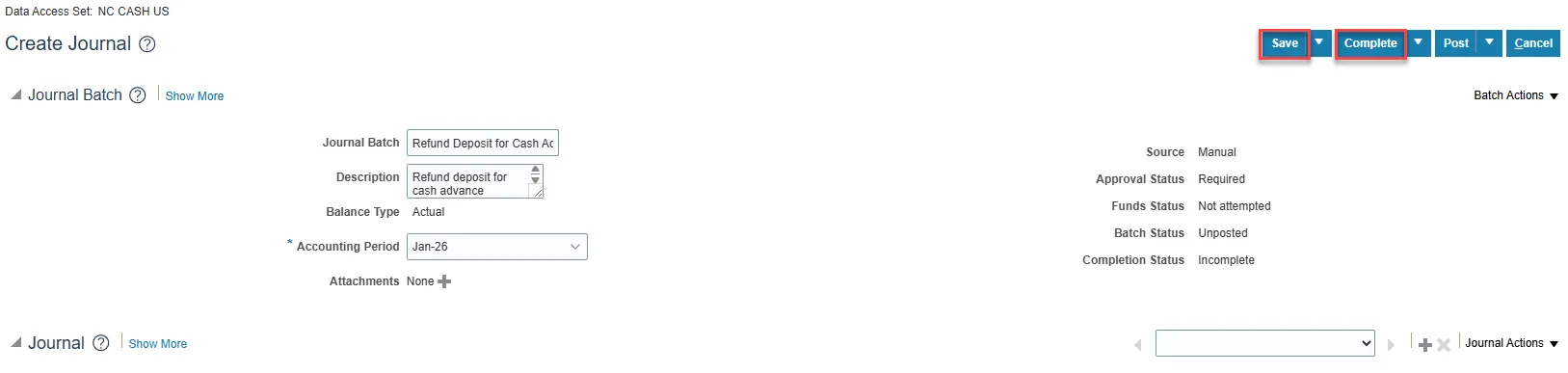
Step 12: After entering all relevant journal lines, ensuring your Budget Funds are in balance, click the Save button.
Step 13: Then select the Complete button, from the top right menu.
Step 14: Click the Batch Action drop-down menu and select the Request Approval option.
Step 15: A Confirmation window pop-up window will appear. Click the OK button to close it.
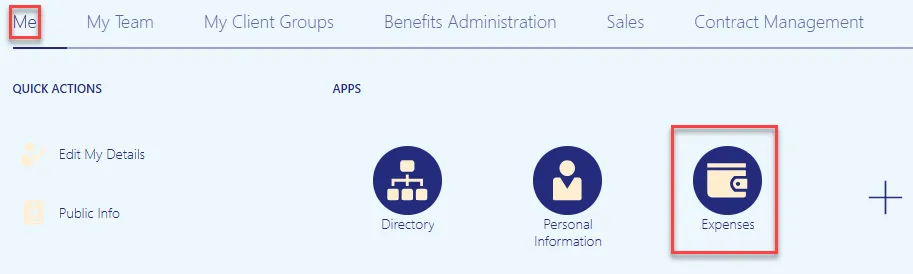
Step 16: Once the journal has been approved and posted, a new expense report will need to be keyed to close the open cash advance. From the Home screen, click the Me tab and then select the Expenses application.
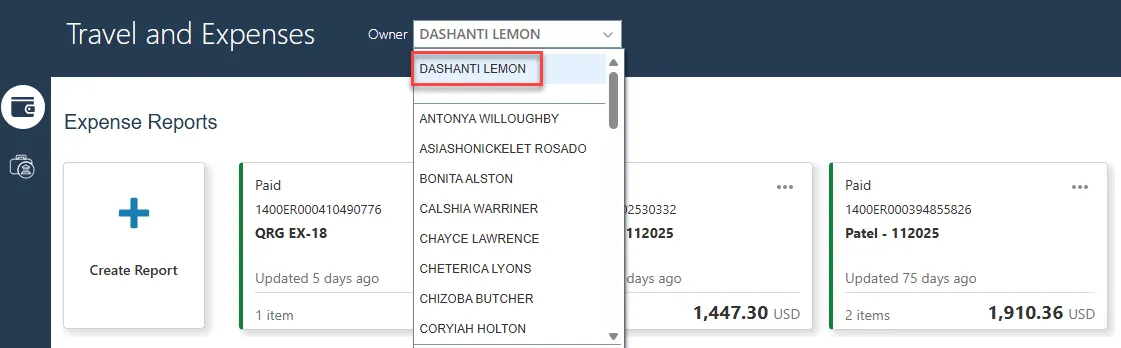
Step 17: On the Travel and Expenses page, select the Owner from the drop-down menu. The owner is the employee for whom you need to enter the expense report.
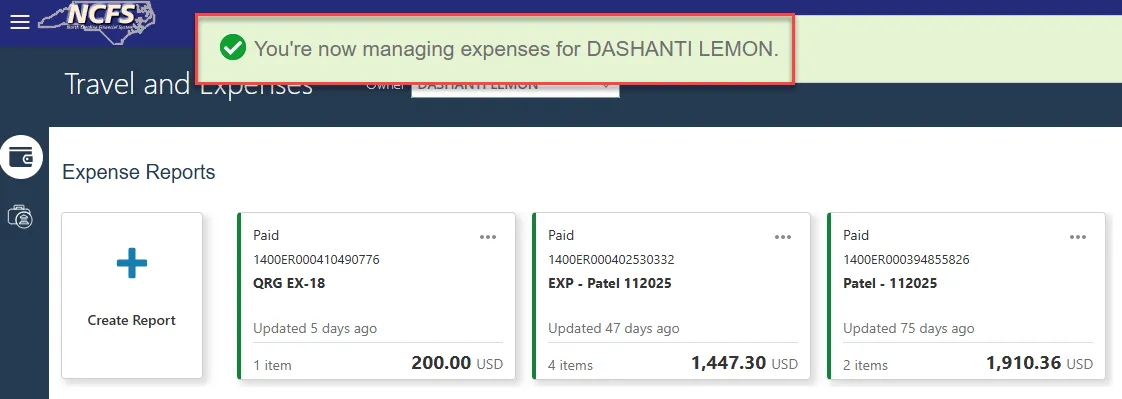
Step 18: A Confirmation pop-up appears to confirm the employee on behalf of whom you are managing expenses.
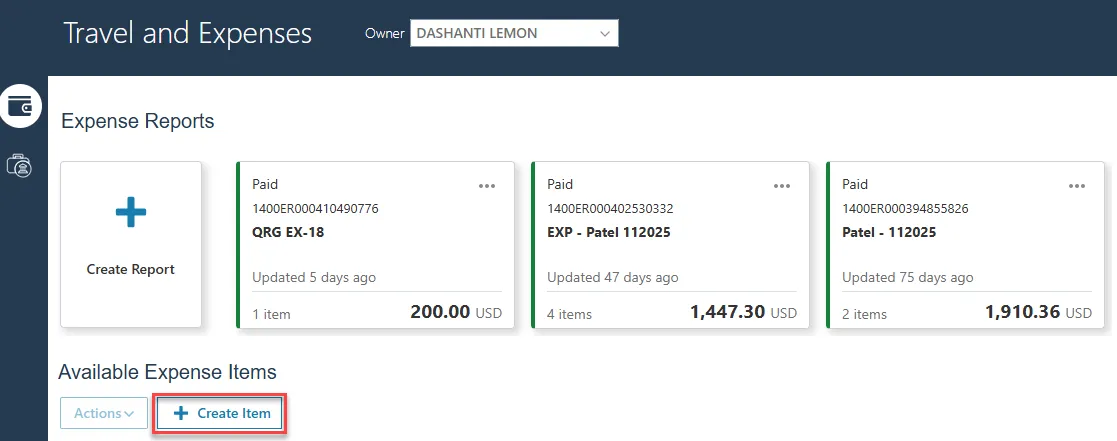
Step 19: On the Expense Reports page, click the Create Item button.
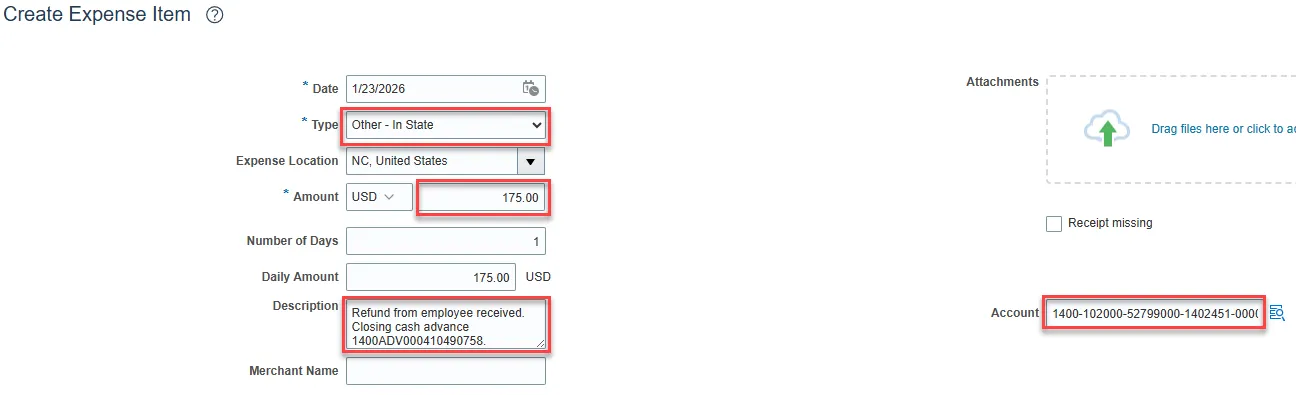
Step 20: An expense item will need to be keyed to clear the remaining open portion of the cash advance. It is recommended to use the expense type of Other – In State.
- Enter the amount of the remaining open cash advance in the Amount field.
- Then enter a description as to the nature of the expense item.
- In this example, we have entered the description: Refund from employee received. Closing cash advance 1400ADV000410490758.
- In the Account field, the chart of accounts will need to match that of the cash advance that is being closed, and that of the credit line that was keyed in the journal referenced above. It’s important these amounts match to ensure no additional payment to the employee is made and the travel advance account is cleared.
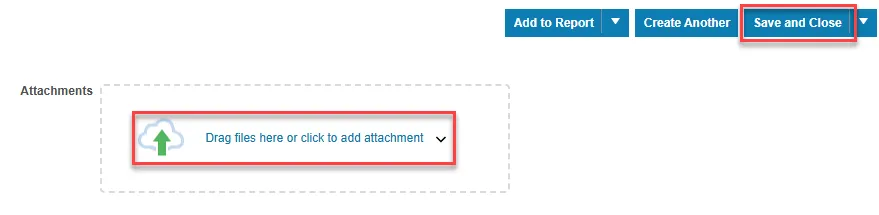
- If attachments are needed as supporting documentation, click Drag files here or click to add attachment.
- Once the attachments have been added, then click Save and Close.
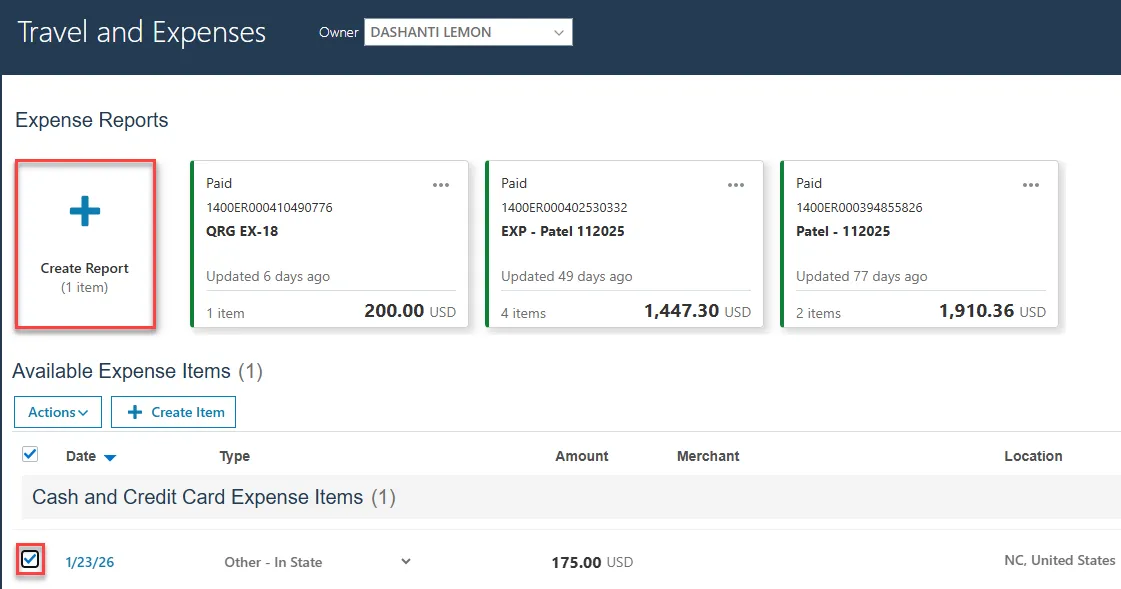
Step 21: Back on the Expense Reports page, select the expense item that was just created and click Create Report.
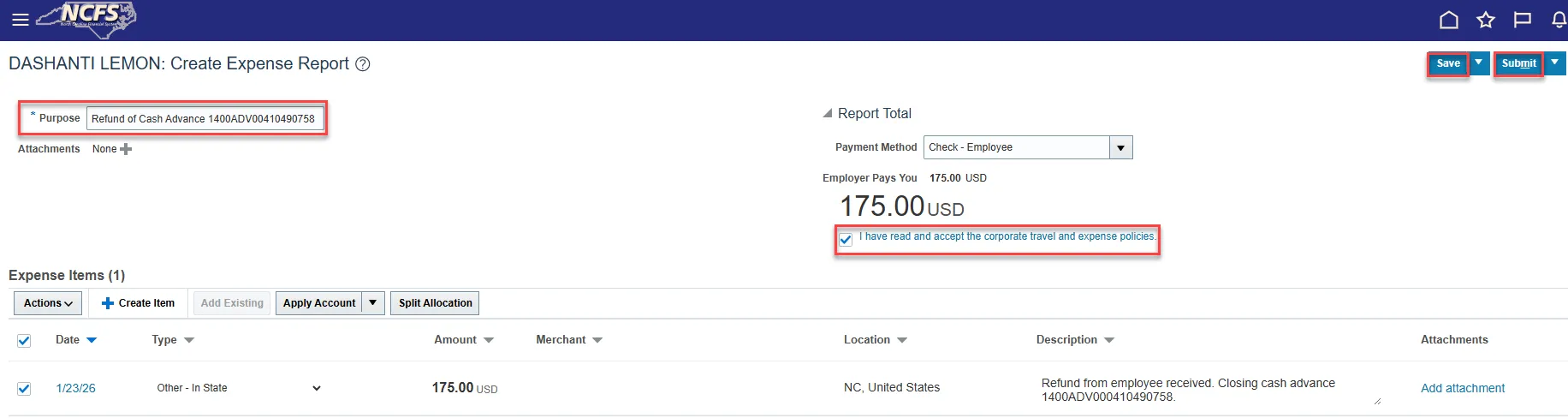
Step 22: On the Create Expense Report screen. Enter your Purpose.
Step 23: Verify the expense report and item information is correct, then select the checkbox stating “I have read and accept the corporate travel and expense policies.”
Step 24: Click the Save button.
Step 25: Click the Submit button.
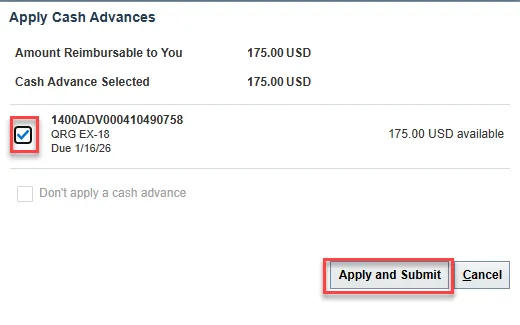
Step 26: A pop-up box will appear asking if you want to apply Cash Advances. Select the open Cash Advance in question and click Apply and Submit.
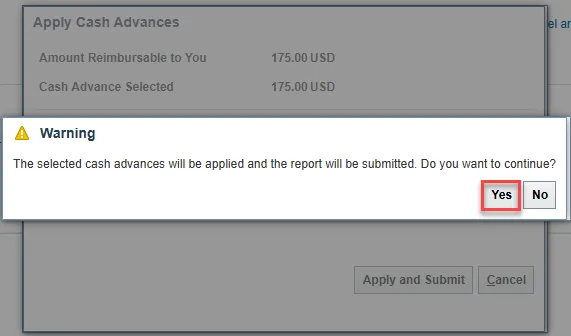
Step 27: A final pop-up box will appear stating the selected cash advances will be applied and the report will be submitted. Click Yes to continue.
Step 28: The expense report has been submitted for approval. Once it has been approved and processed to Payables, it can be paid as an invoice. Payment of this expense report will close the open advance in NCFS without issuing payment to the employee. The payment of the expense report against the cash advance will have a $0.00 impact on the 532799000 account.
Wrap-Up
The 28-step process covers how to Close open Cash Advances for expenses that were incurred but did not use the full amount of the Cash Advance.
Additional Resources
Instructor-Led Training (vILT)
- EX100 – Expense Reports and Cash Advances
- GL100c – Journal Entry